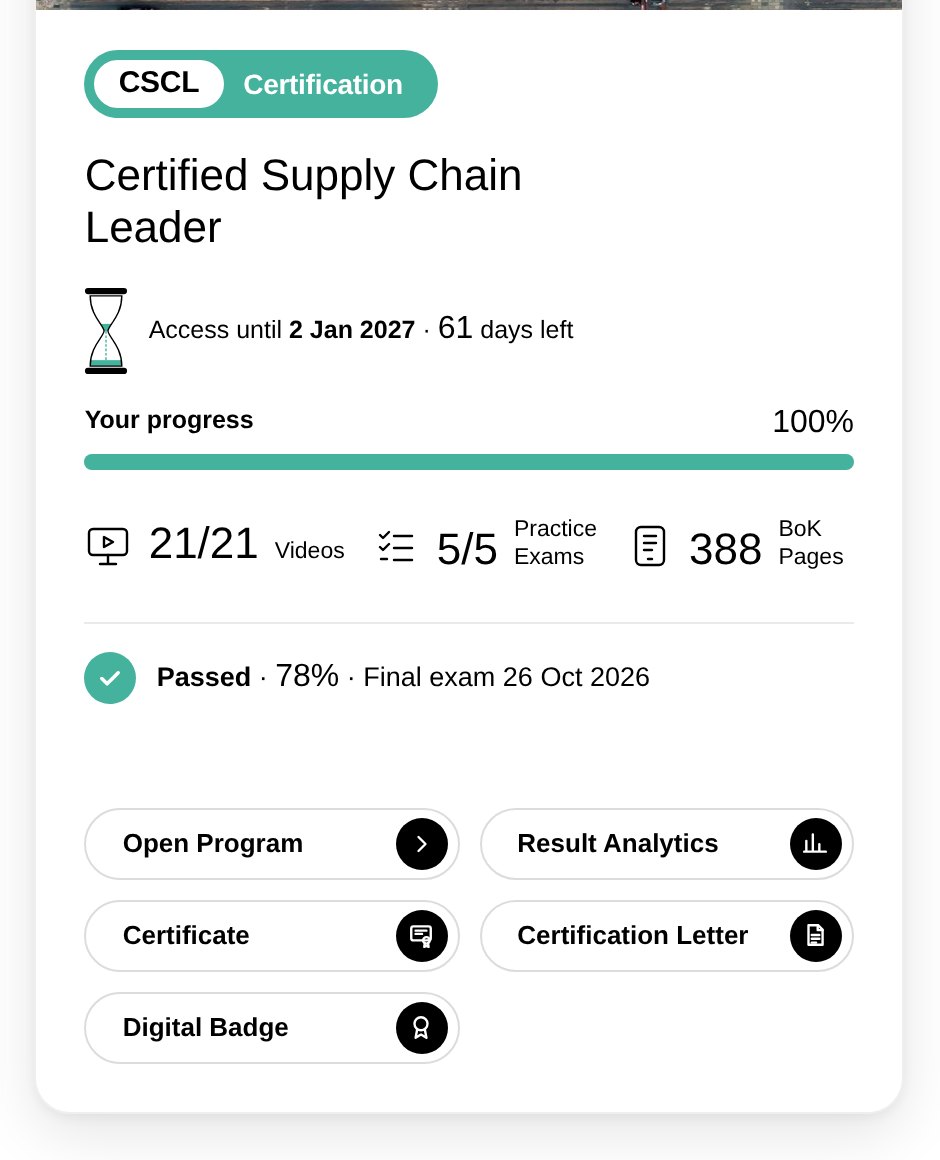
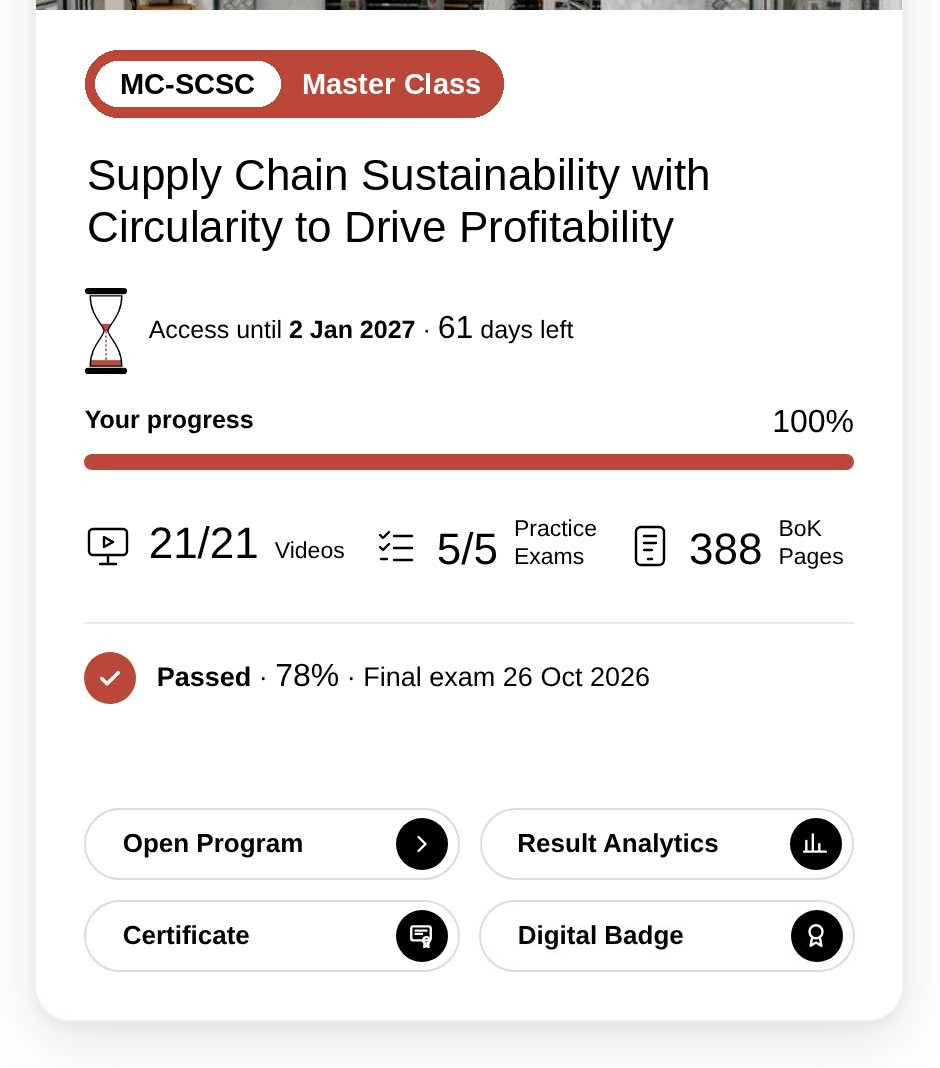
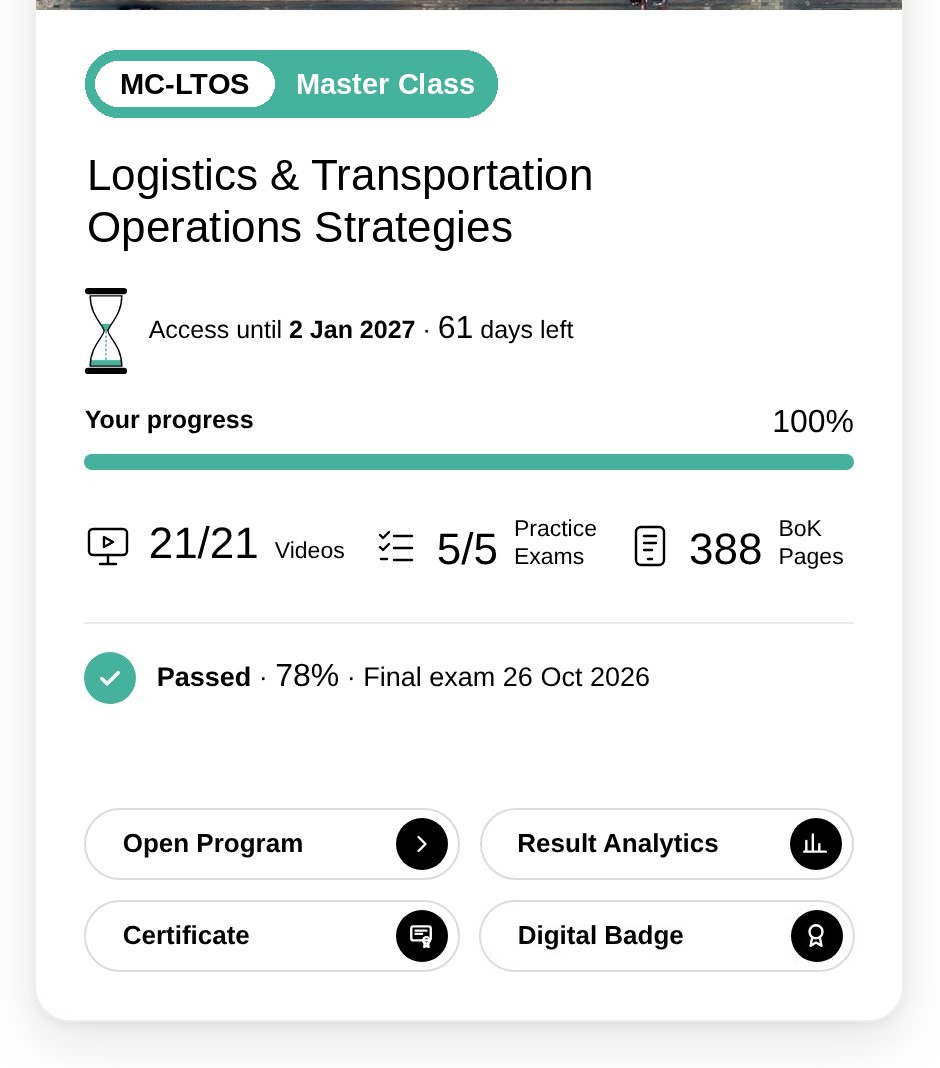
Choose your program, then Standard or Corporate Subscription, to see your study steps.
Certification
Master Class
Mini-Master Class
Schools, Colleges & Universities
Your subscription
01.
Open Your Home
After you log in, Your Home shows all your programs, your progress and your access dates. Click Continue to go on where you stopped, or Open Program.
Click Continue to go on where you stopped
1Click Continue to go on where you stopped
Click Continue to go on where you stopped
1Click Continue to go on where you stopped
01.
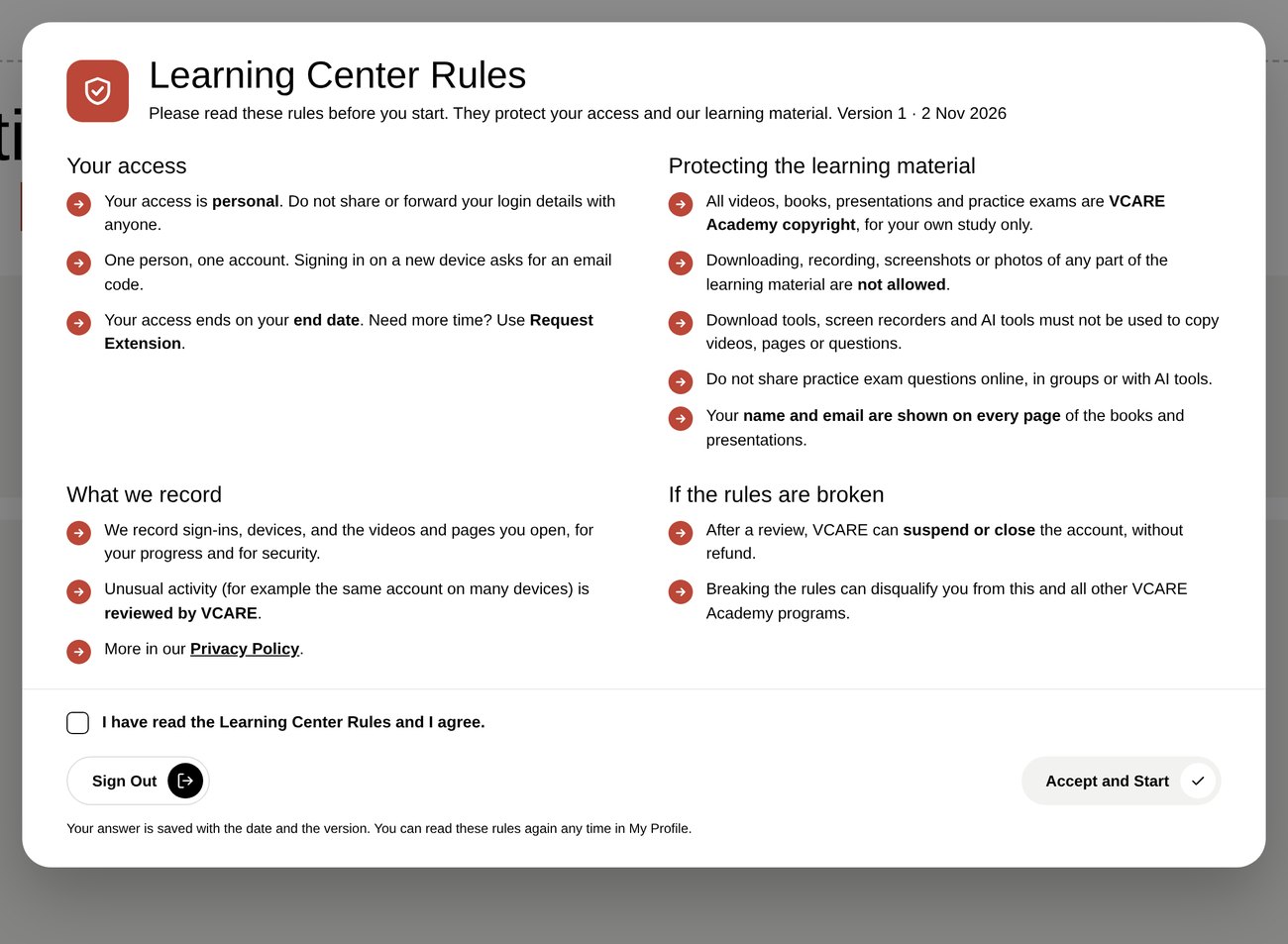
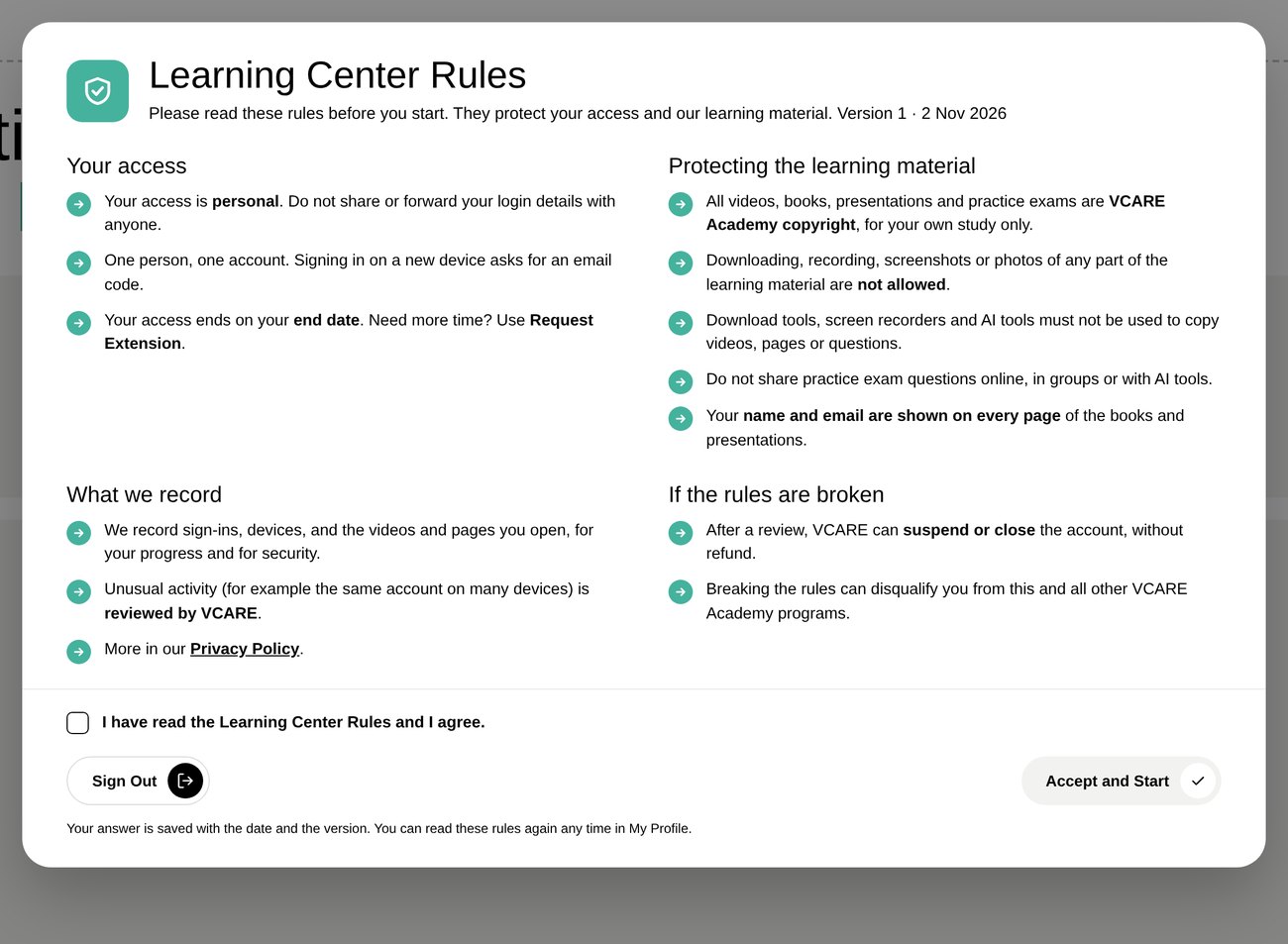
Accept the Learning Center Rules
The first time, read the rules, tick that you agree and click Accept and Start.
Tip You can read the rules again any time in My Profile.
1Tick that you agree
2Click Accept and Start
1Tick that you agree
2Click Accept and Start
1Tick that you agree
2Click Accept and Start
1Tick that you agree
2Click Accept and Start
01.
Your Program Page
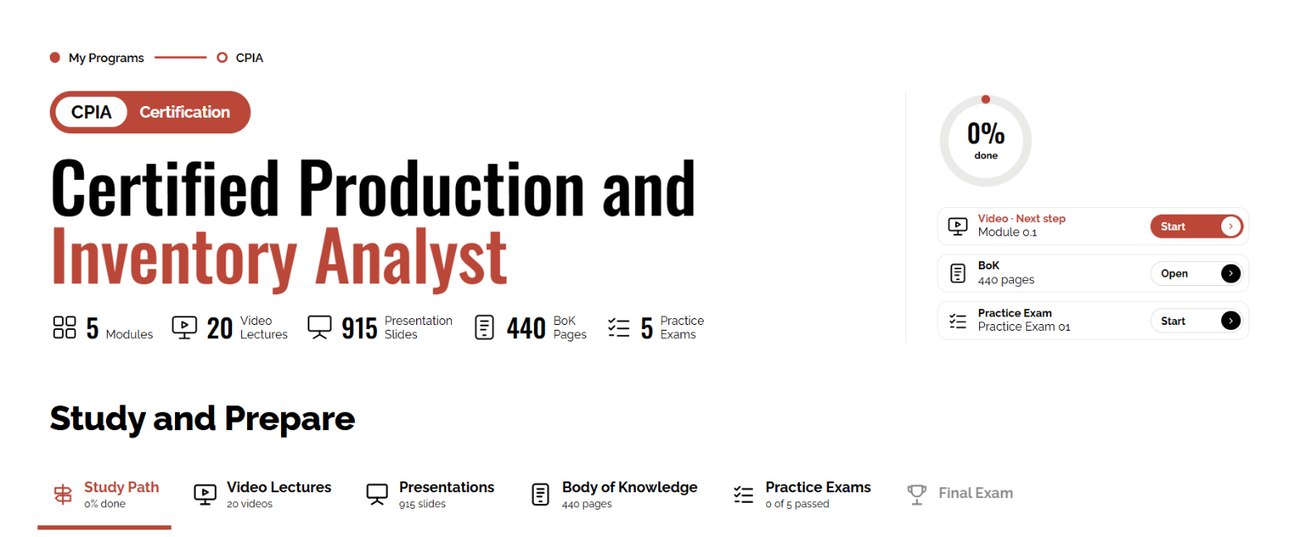
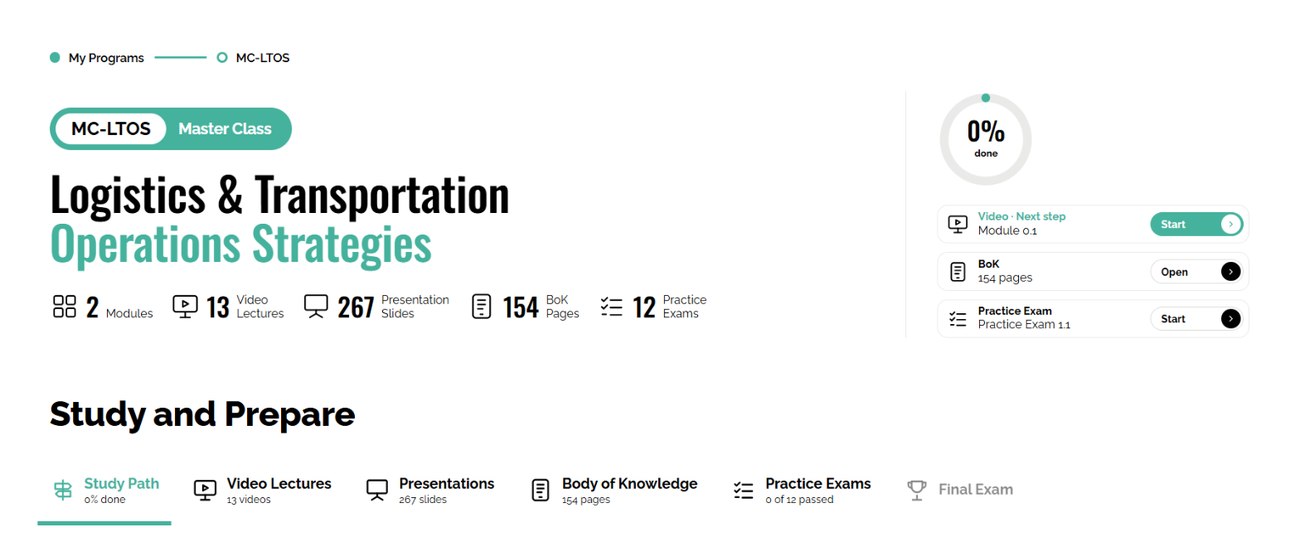
My Learning has everything for your program: Study Path, Video Lectures, Body of Knowledge, Practice Exams and Final Exam. Start with the Introduction.
Tip All modules are open: study in any order.
1Switch between study path, videos, book and exams
2Start here: watch the Introduction
1Switch between study path, videos, book and exams
2Start here: watch the Introduction
1Switch between study path, videos, book and exams
2Start here: watch the Introduction
1Switch between study path, videos, book and exams
2Start here: watch the Introduction
01.
Your Program Page
At the top you see your progress and your next step: click Start and the Learning Center takes you there. My Programs takes you back to all your programs.
1Your next step: click Start
2Back to all your programs
1Your next step: click Start
2Back to all your programs
1Your next step: click Start
2Back to all your programs
1Your next step: click Start
2Back to all your programs
01.
Watch the Video Lessons
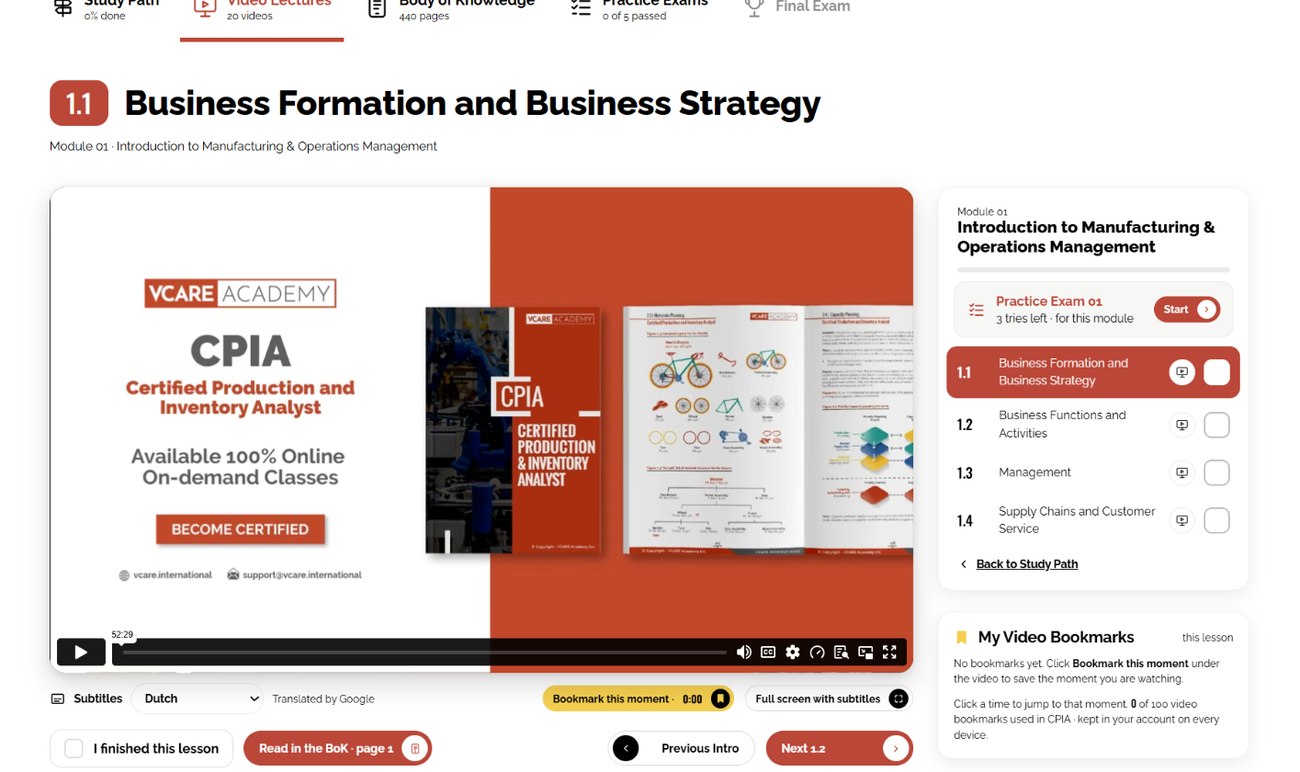
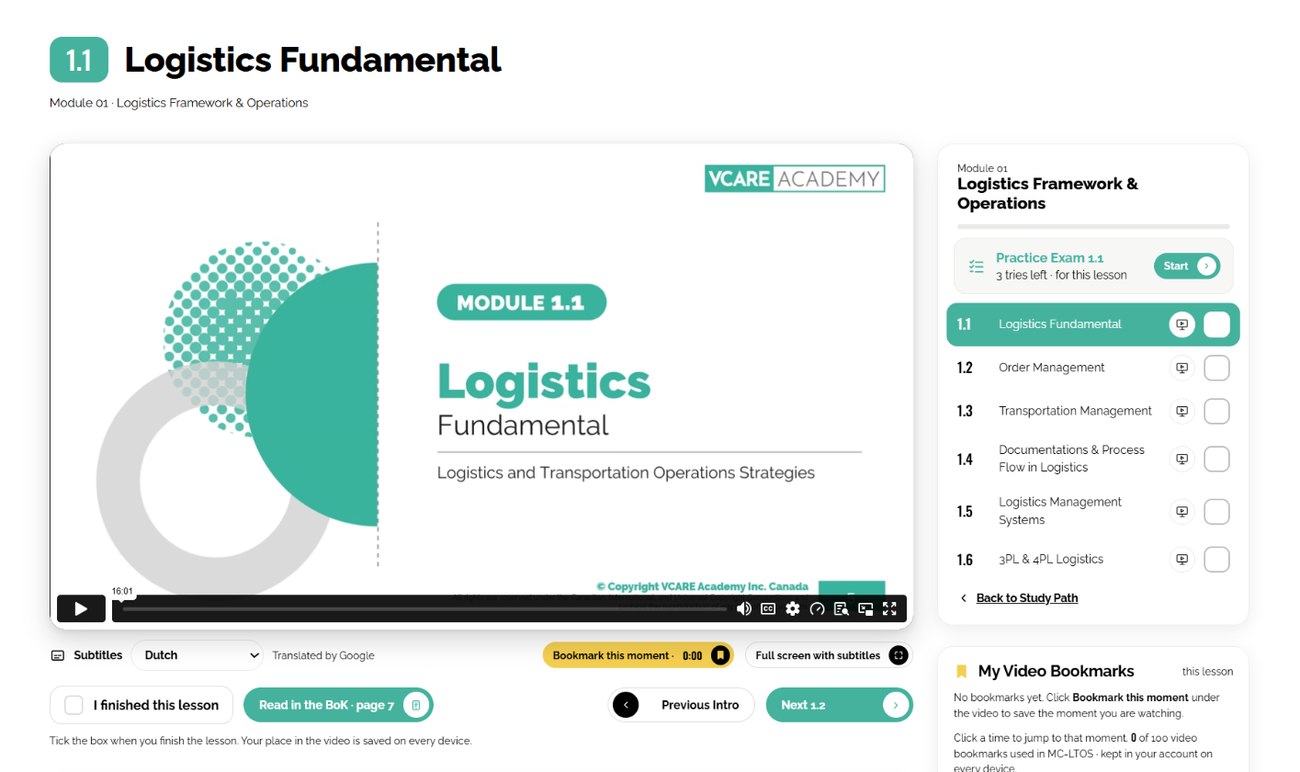
Each lesson has its video, subtitles, a transcript and video bookmarks. Tick I finished this lesson, then click Next.
Tip A lesson is also ticked by itself when you watch the video to the end.
1Tick when you finished the lesson
2Go to the next lesson
1Tick when you finished the lesson
2Go to the next lesson
1Tick when you finished the lesson
2Go to the next lesson
1Tick when you finished the lesson
2Go to the next lesson
01.
Transcript, Subtitles and Video Bookmarks
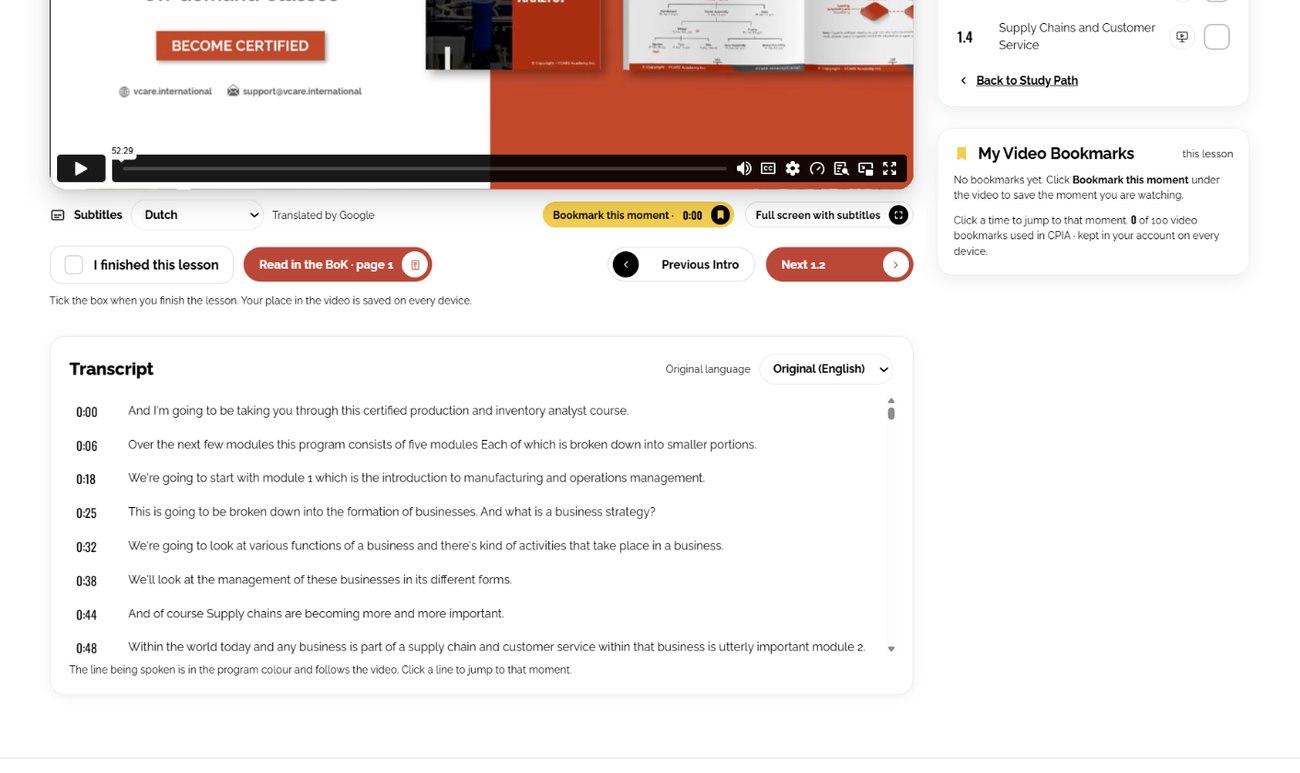
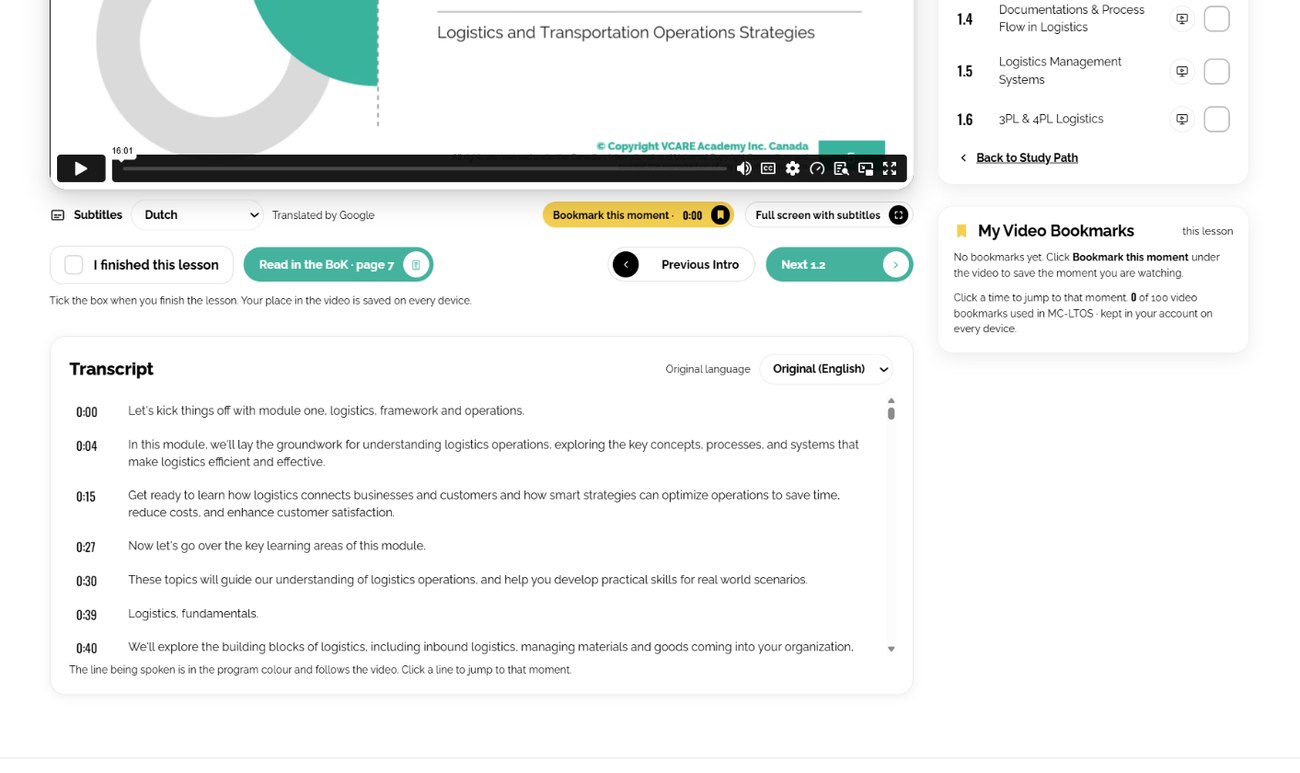
Under every video: choose Subtitles in your own language, click Bookmark this moment to save a moment, and follow the Transcript: click a line to jump to that moment in the video.
1Subtitles in your own language
2Save this moment of the video
3Transcript: click a line to jump to that moment
1Subtitles in your own language
2Save this moment of the video
3Transcript: click a line to jump to that moment
1Subtitles in your own language
2Save this moment of the video
3Transcript: click a line to jump to that moment
1Subtitles in your own language
2Save this moment of the video
3Transcript: click a line to jump to that moment
01.
Read the Body of Knowledge
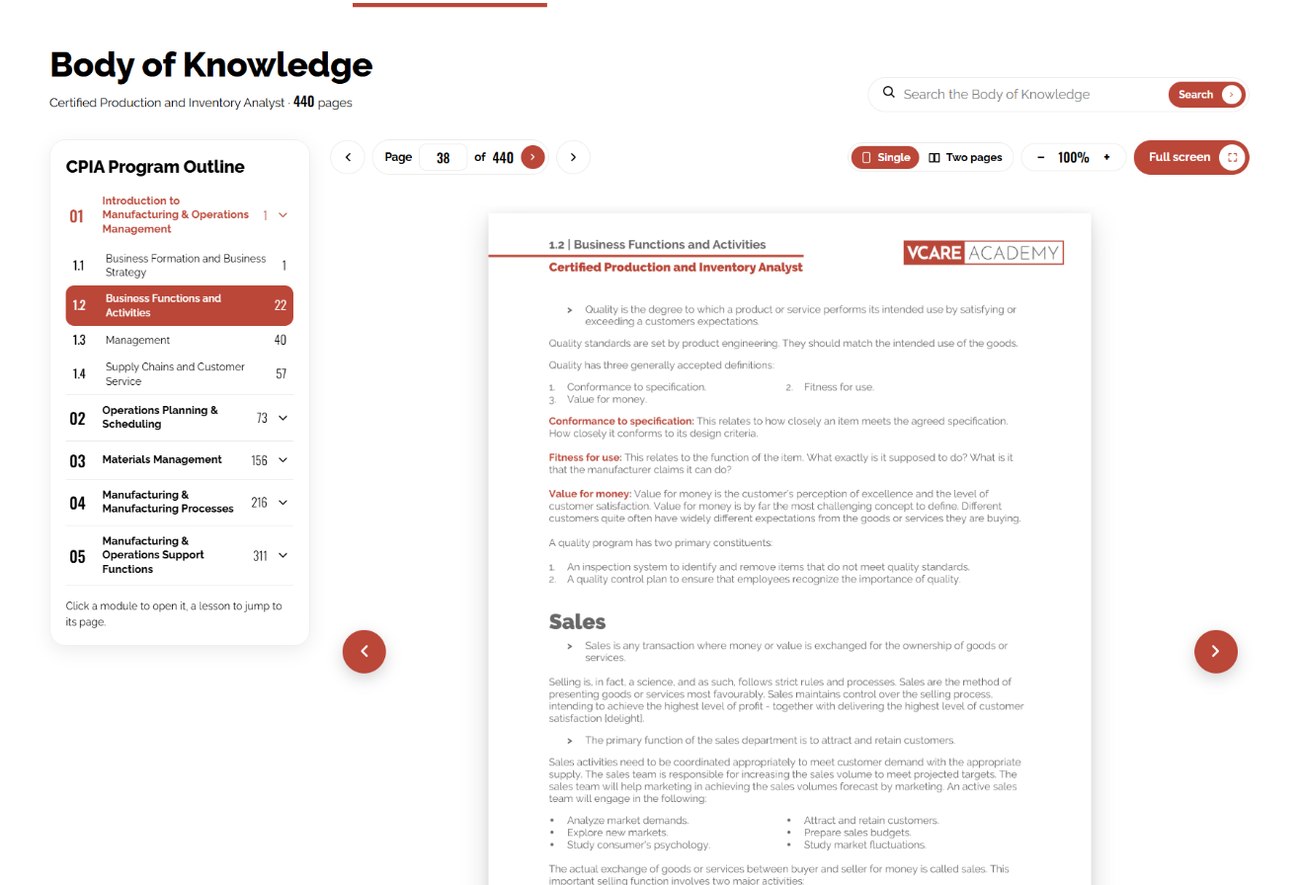
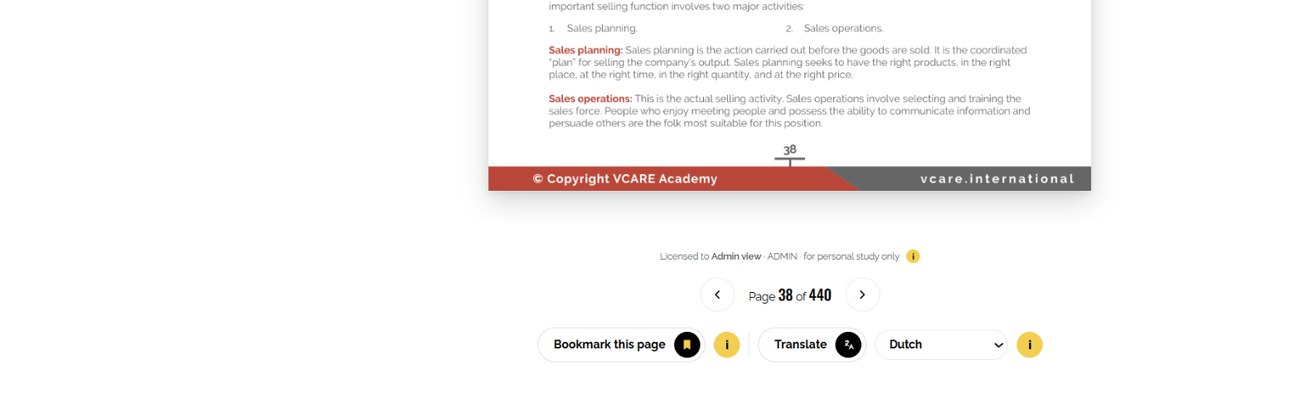
Read the full book page by page. Use the Program Outline to jump to a lesson, and Search to find any word in the book.
1Click a lesson to jump to its page
2Search the whole book
1Click a lesson to jump to its page
2Search the whole book
1Click a lesson to jump to its page
2Search the whole book
1Click a lesson to jump to its page
2Search the whole book
01.
Listen to Voice of Wisdom
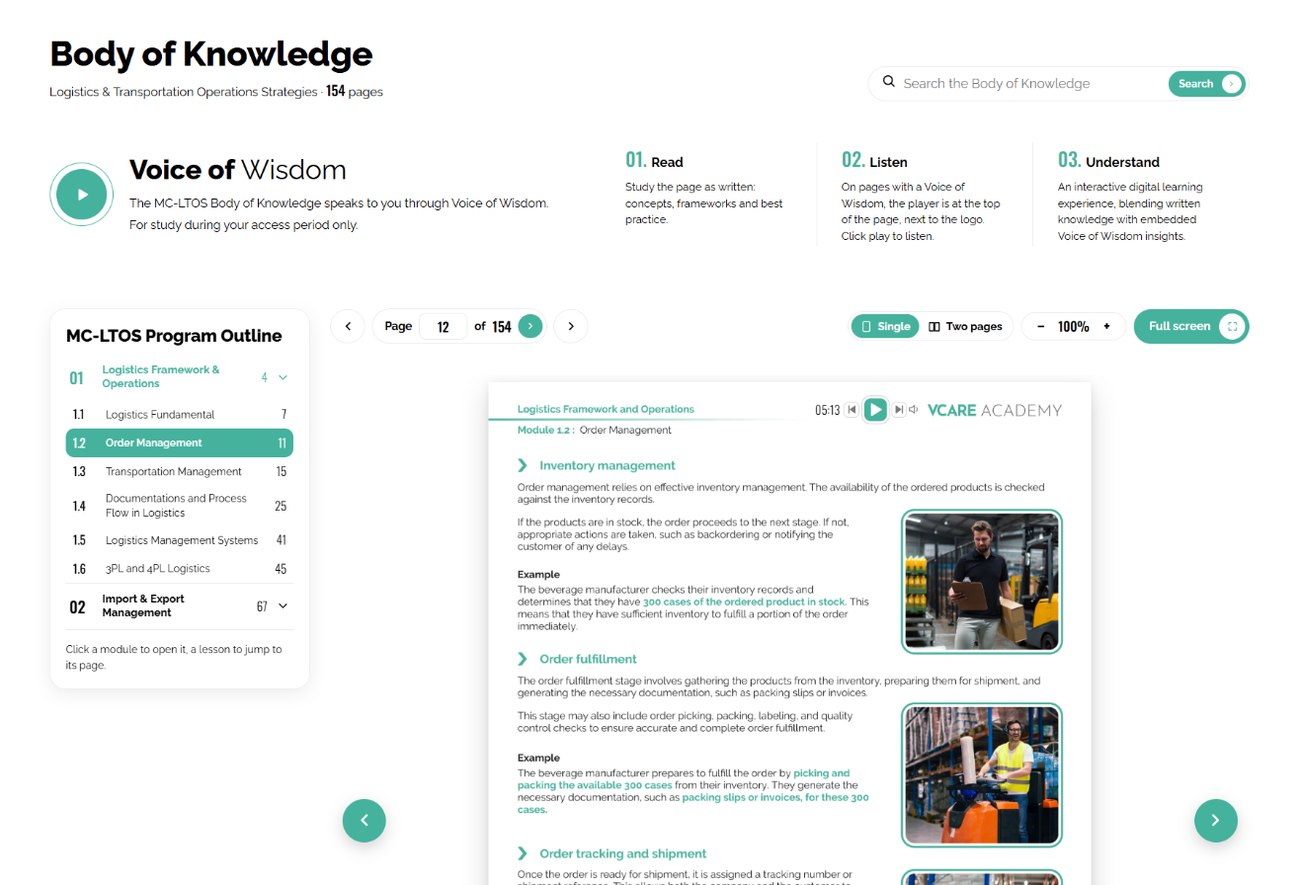
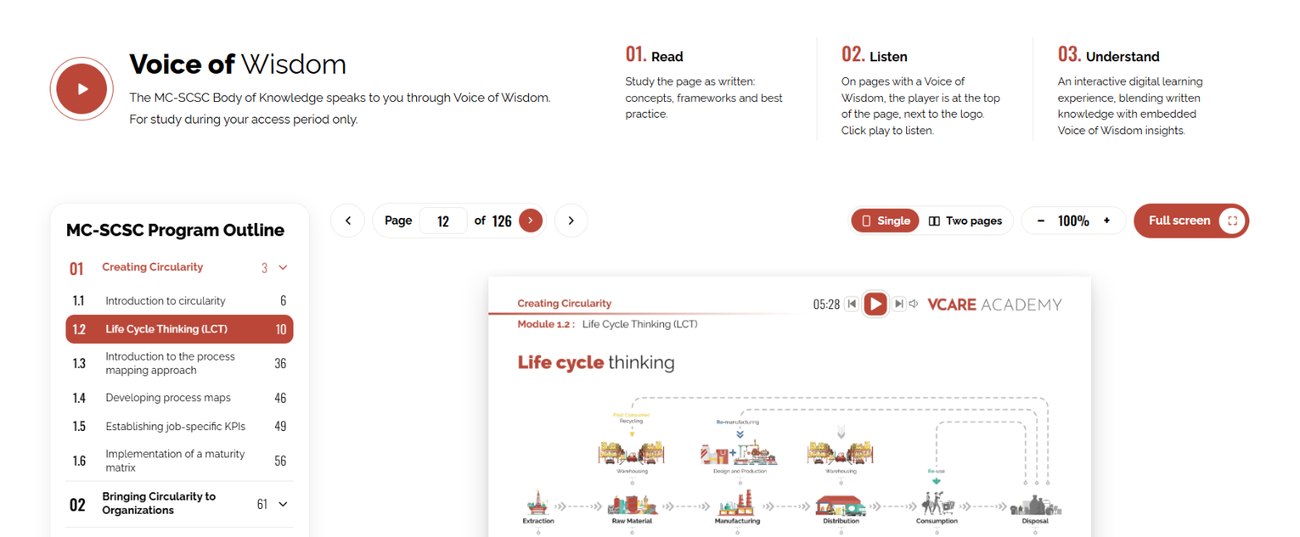
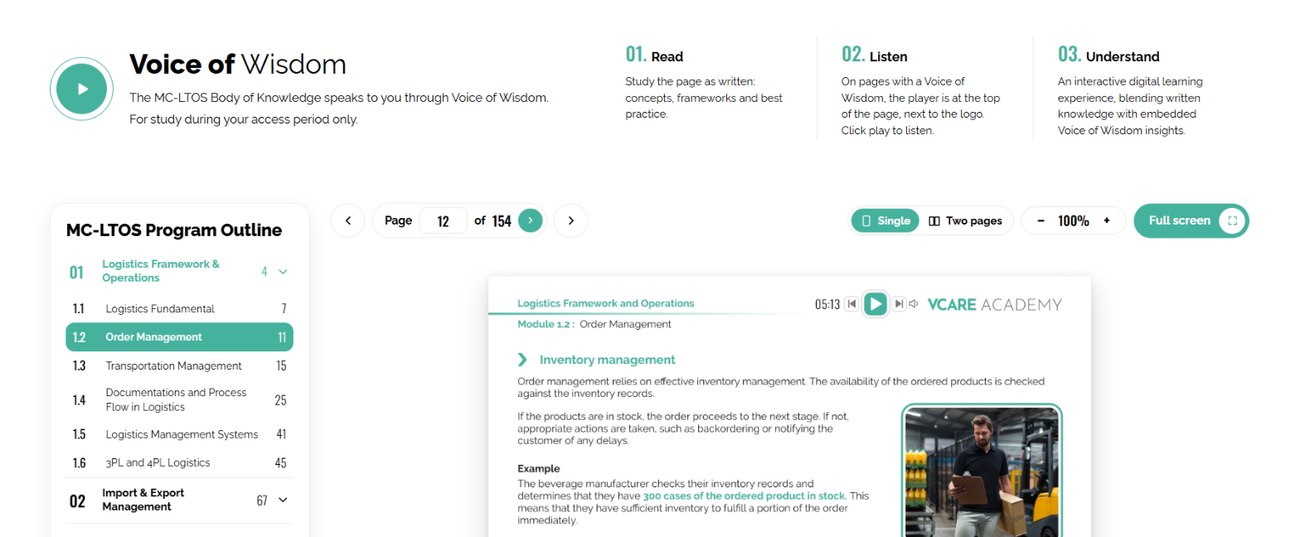
The Body of Knowledge speaks to you. On pages with Voice of Wisdom, the player is at the top of the page: press play and listen.
1Voice of Wisdom: the book speaks to you
2Press play to listen to this page
1Voice of Wisdom: the book speaks to you
2Press play to listen to this page
1Voice of Wisdom: the book speaks to you
2Press play to listen to this page
1Voice of Wisdom: the book speaks to you
2Press play to listen to this page
01.
Bookmark and Translate
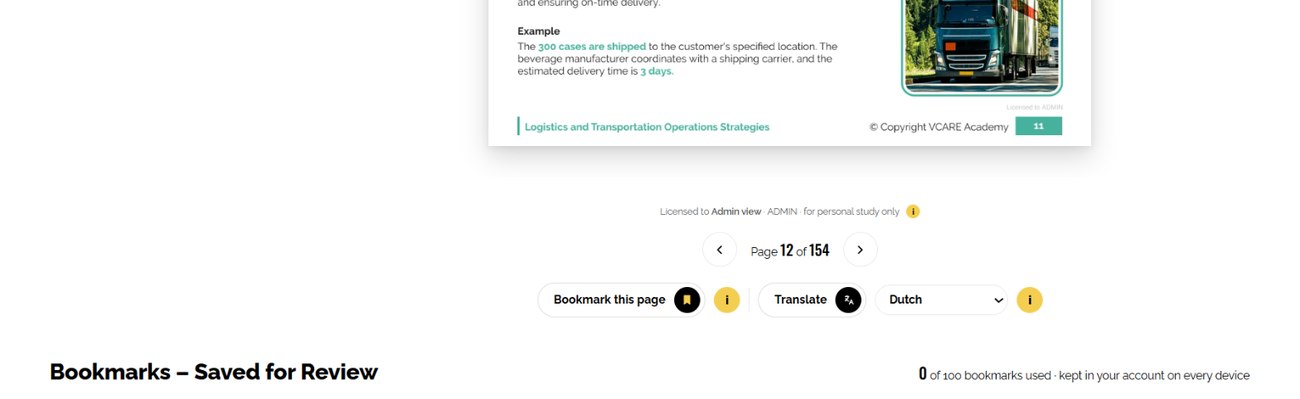
Under every page: Bookmark this page to find it again later, and Translate to read it in your own language.
Bookmark this page, or translate it into your language
1Bookmark this page, or translate it into your language
Bookmark this page, or translate it into your language
1Bookmark this page, or translate it into your language
01.
Review and Translate the Presentations
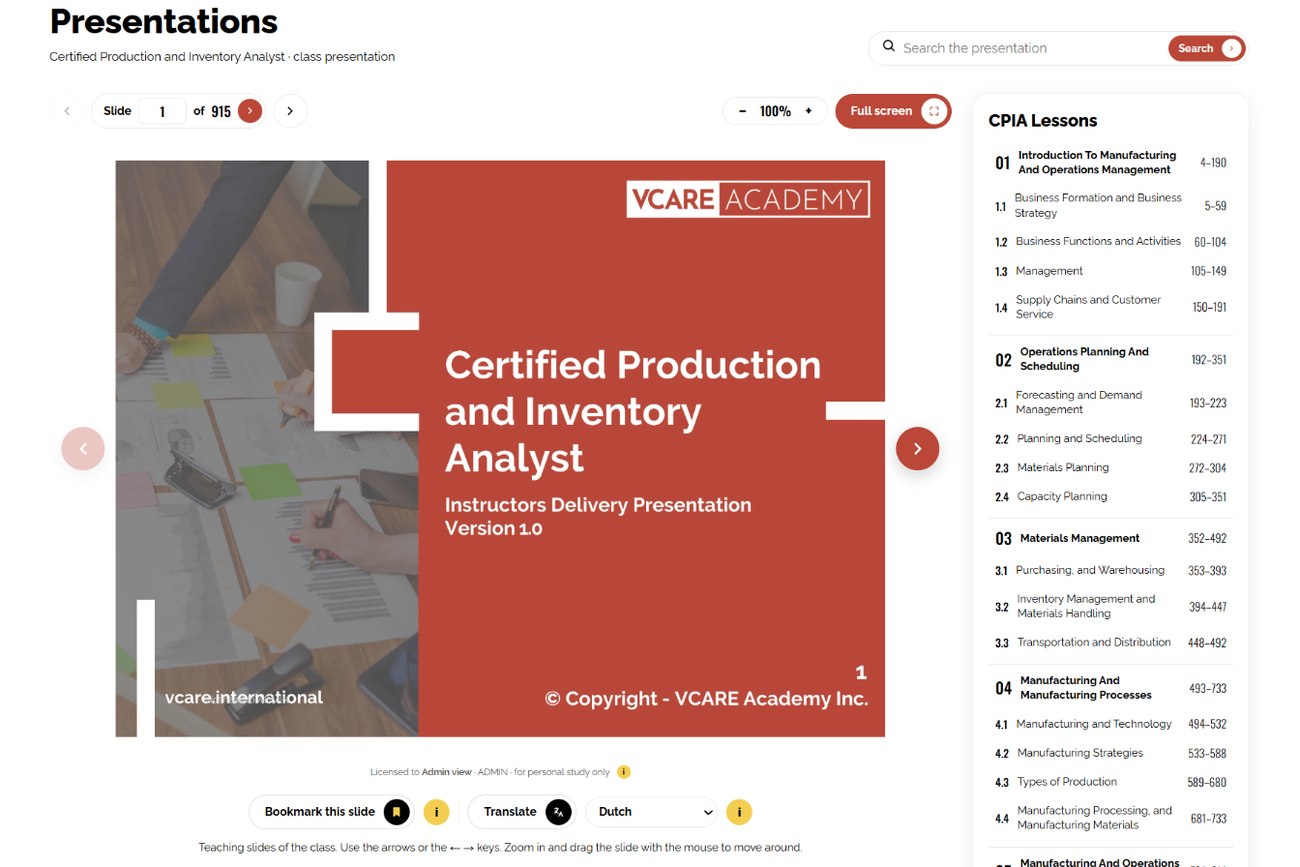
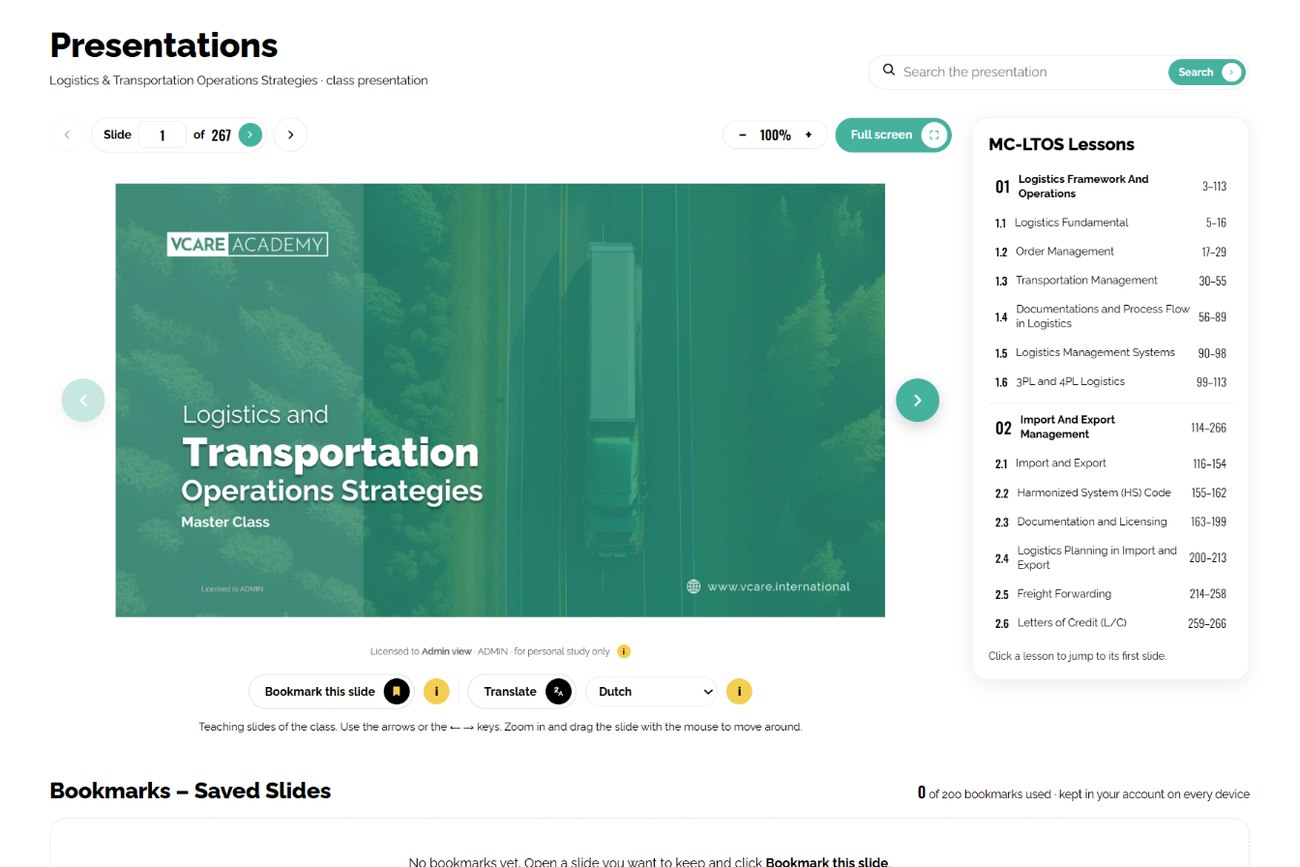
Your Learning Center includes the class slides: open Presentations on your program page. Click Translate to read any slide in your own language, Bookmark this slide, or jump to any lesson on the right.
1Jump to any lesson
2Translate a slide or bookmark it
1Jump to any lesson
2Translate a slide or bookmark it
1Jump to any lesson
2Translate a slide or bookmark it
1Jump to any lesson
2Translate a slide or bookmark it
01.
Practice Exams
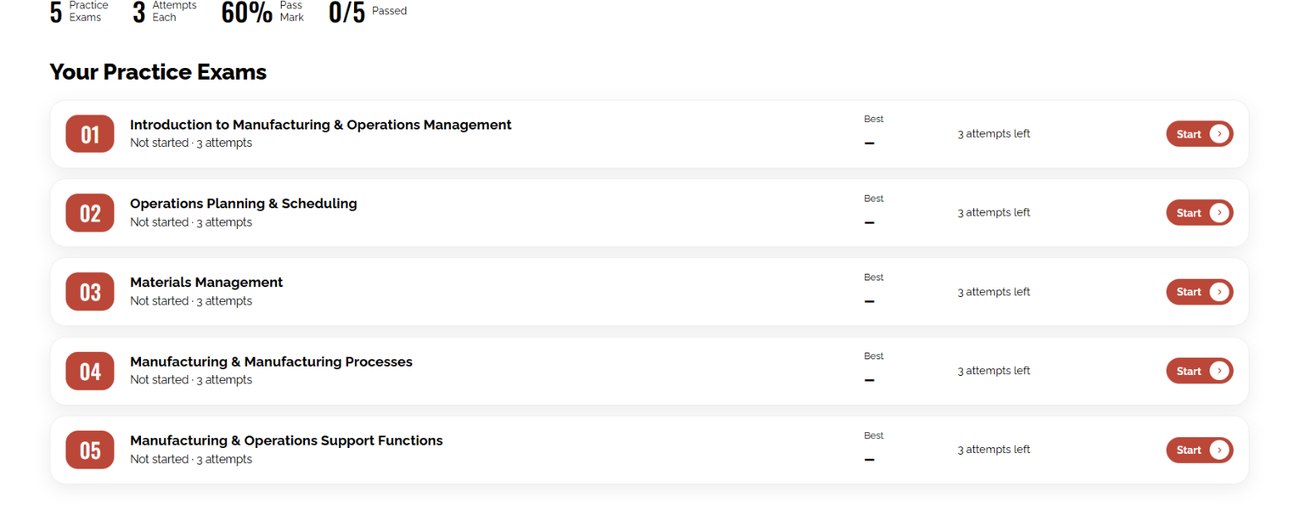
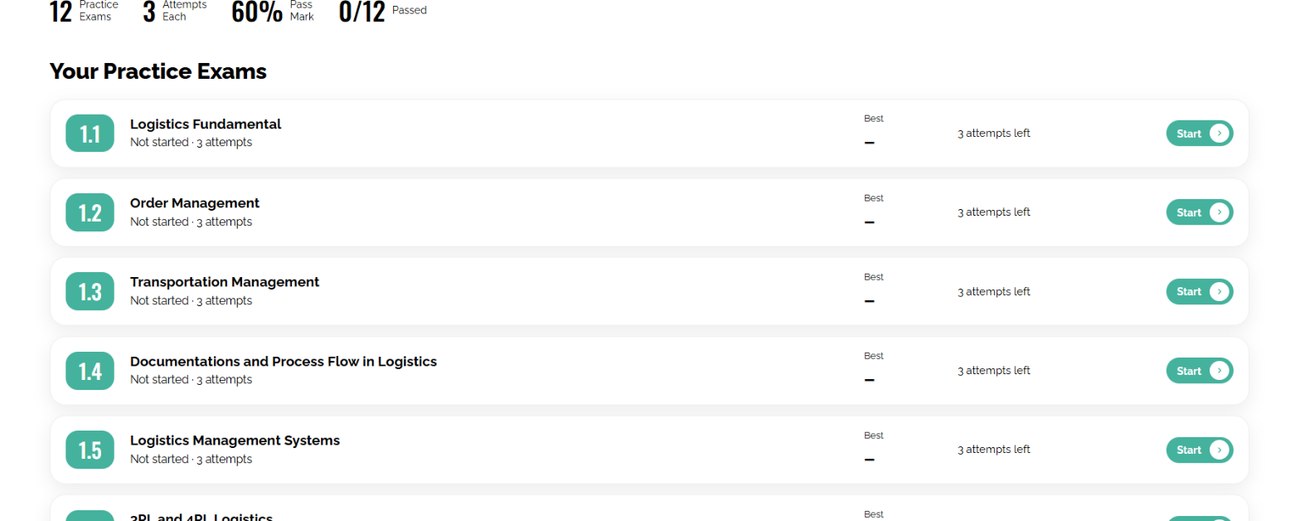
A timed exam per module, with 3 attempts and a review of every answer afterwards. Click Start when you are ready.
Tip A practice exam opens when the lessons of its module are done.
Click Start: 3 attempts, then review every answer
1Click Start: 3 attempts, then review every answer
Click Start: 3 attempts, then review every answer
1Click Start: 3 attempts, then review every answer
01.
Book Your Final Exam
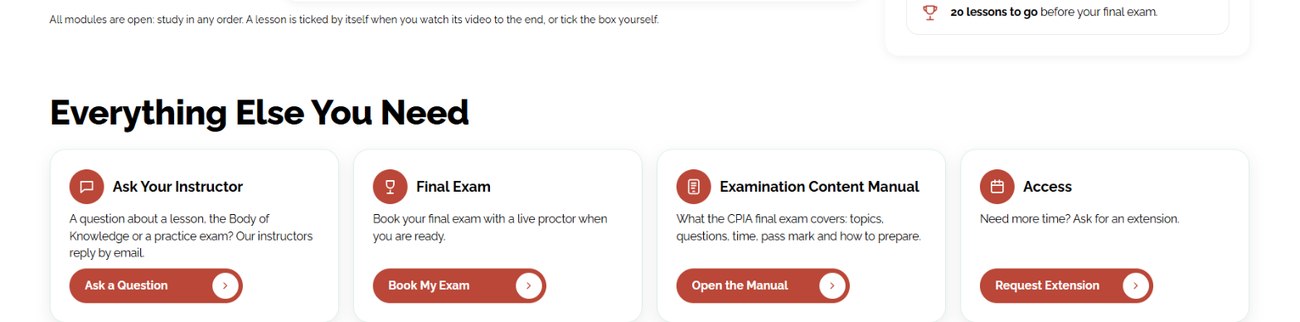
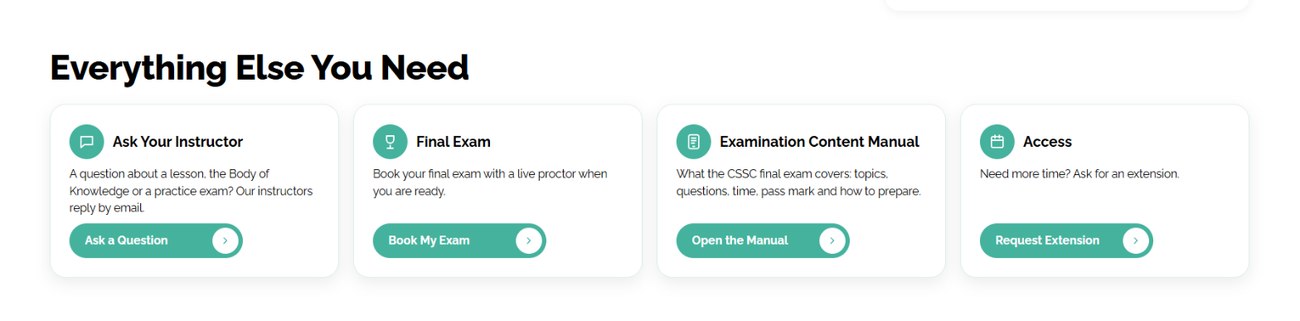
When all lessons and practice exams are done, click Book My Exam under Everything Else You Need and book your proctored final exam online with a live proctor.
Tip Book at least 14 days ahead.
Ready? Click Book My Exam
1Ready? Click Book My Exam
Ready? Click Book My Exam
1Ready? Click Book My Exam
01.
Start Your Final Exam
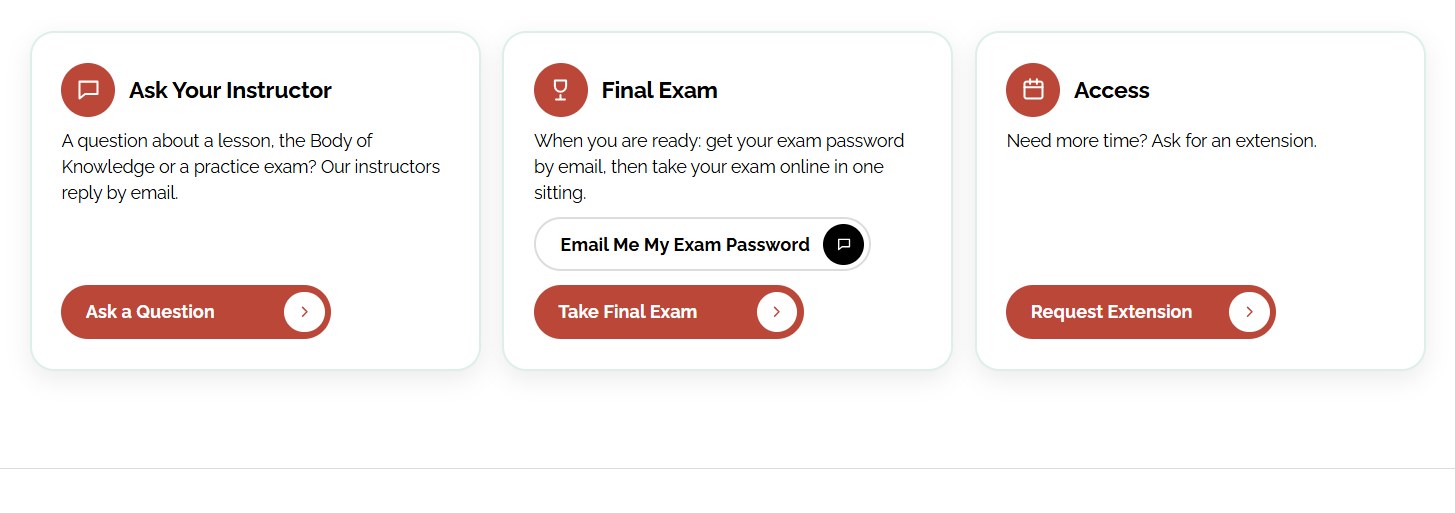
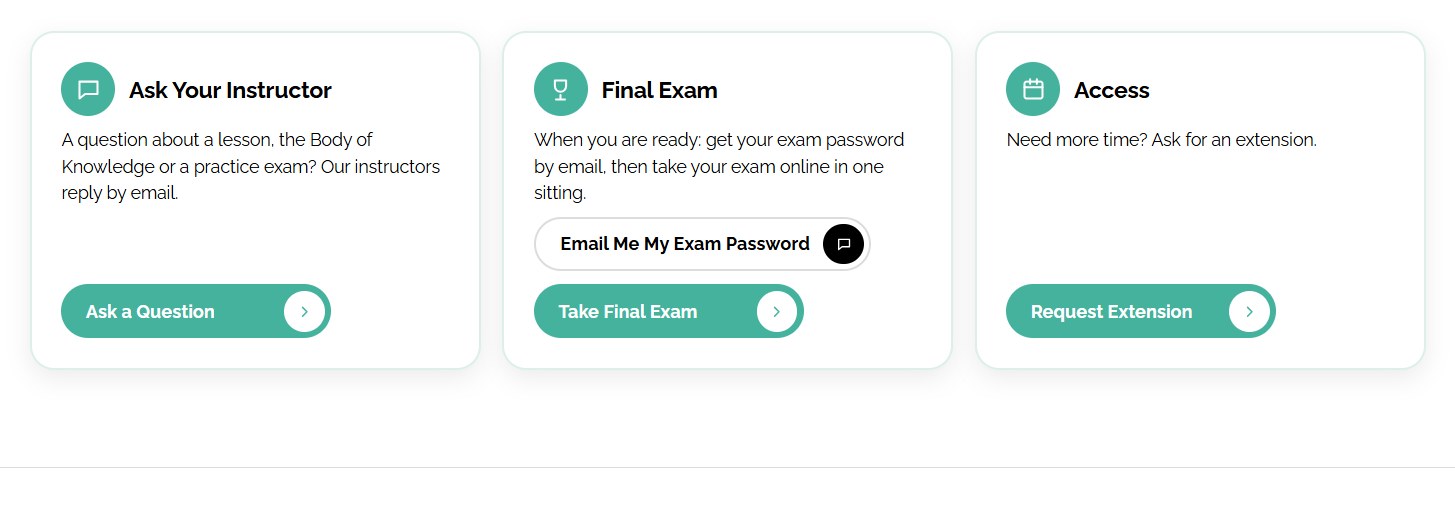
When you have finished the course, go to Final Exam under Everything Else You Need. Click Email Me My Exam Password: we email it to you at once. Then click Take Final Exam and log in with your Registration ID and that password. No booking needed.
Tip The password works for one attempt. Not passed? Your free 2nd attempt password comes to you by email.
1Get your exam password by email
2Then take your exam here
1Get your exam password by email
2Then take your exam here
1Get your exam password by email
2Then take your exam here
1Get your exam password by email
2Then take your exam here
01.
Your Final Exam
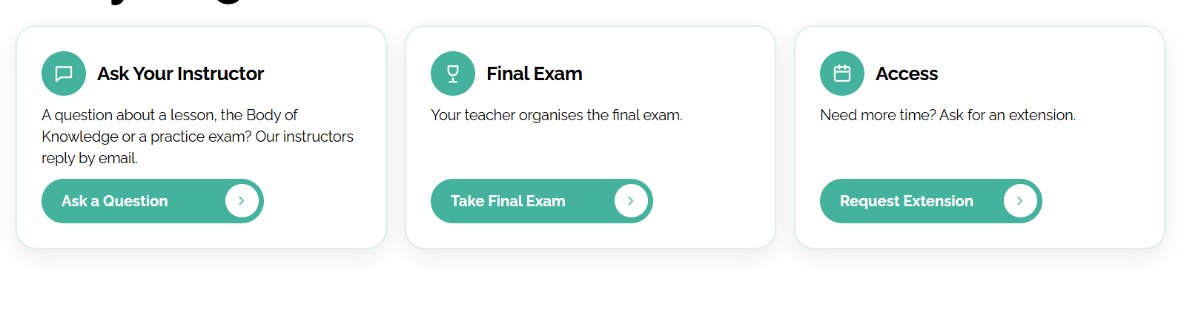
Your teacher organises the final exam. In the Learning Center, Take Final Exam under Everything Else You Need reminds you of this. Please contact your teacher to arrange it.
1Your teacher organises the exam
1Your teacher organises the exam
1Your teacher organises the exam
1Your teacher organises the exam
01.
Certificate and Digital Badge
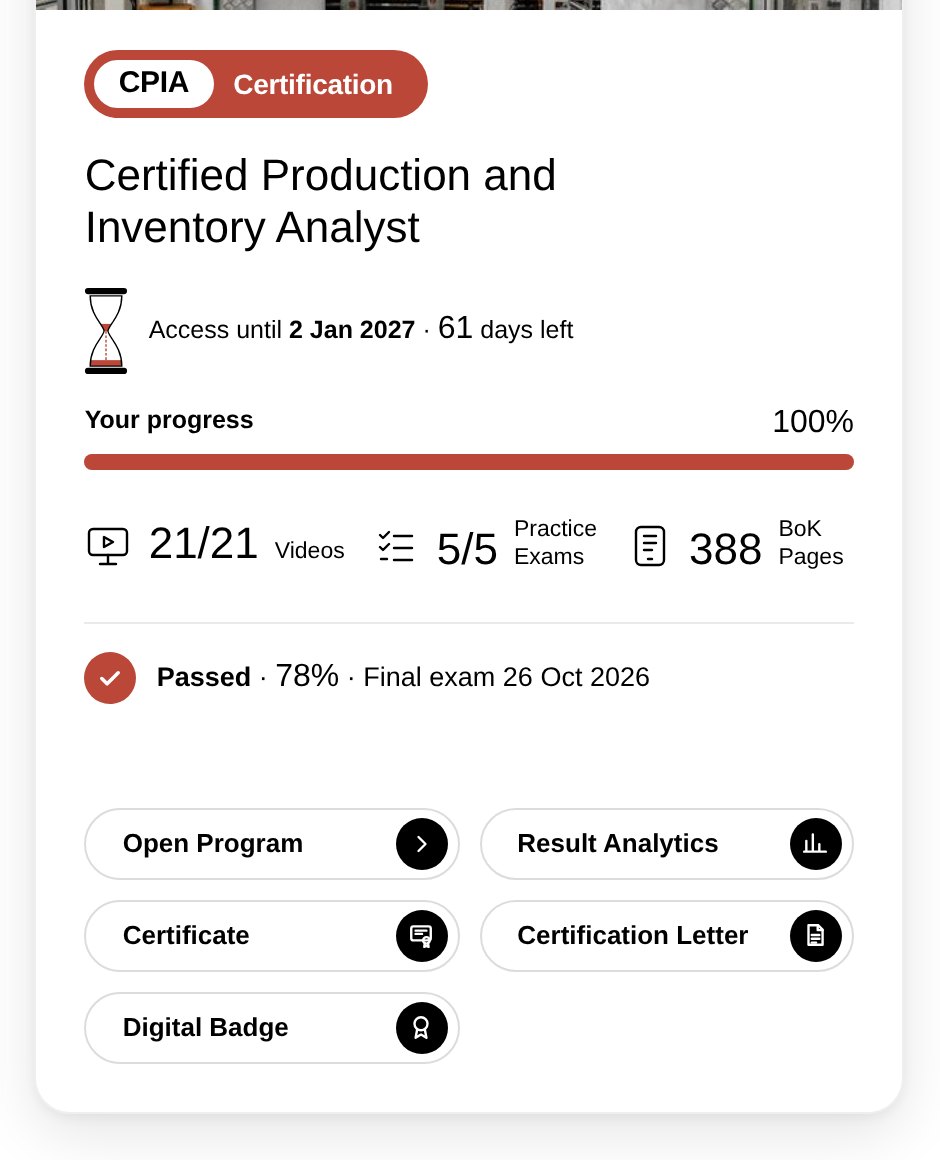
Pass your final exam, then download your Certificate and your Digital Badge from your program card. Anyone can verify them online.
Download your certificate and badge
1Download your certificate and badge
Download your certificate and badge
1Download your certificate and badge
01.
Certificate and Digital Badge
Pass your final exam, then download your Certificate and your Digital Badge from your program card. Anyone can verify them online.
Download your certificate and badge
1Download your certificate and badge
Download your certificate and badge
1Download your certificate and badge
01.
Certificate After Part II
Part I has no certificate of its own. When you also pass the final exam of Part II, you download your Certificate and your Digital Badge from your Part II program card.
Download your certificate and badge
1Download your certificate and badge
Download your certificate and badge
1Download your certificate and badge
01.
Certificate and Digital Badge
After you pass the final exam of Part II, download your Certificate and your Digital Badge from your program card. Anyone can verify them online.
Download your certificate and badge
1Download your certificate and badge
Download your certificate and badge
1Download your certificate and badge
Need help?
Cannot log in? Read How to Log In. Questions about your program? Write to us.