Your Learning Center opens with the VCARE Academy Login at vcare.academy/login/. The first time takes about 2 minutes.
First Time
Set up your account · about 2 minutes
01.
Open the login and click Set Up Your Account
Go to vcare.academy/login/ (or click Student Login on our website). Under First time here? click the green button Set Up Your Account.
1First time? Click here
2Stuck? Click here for help
1First time? Click here
2Stuck? Click here for help
02.
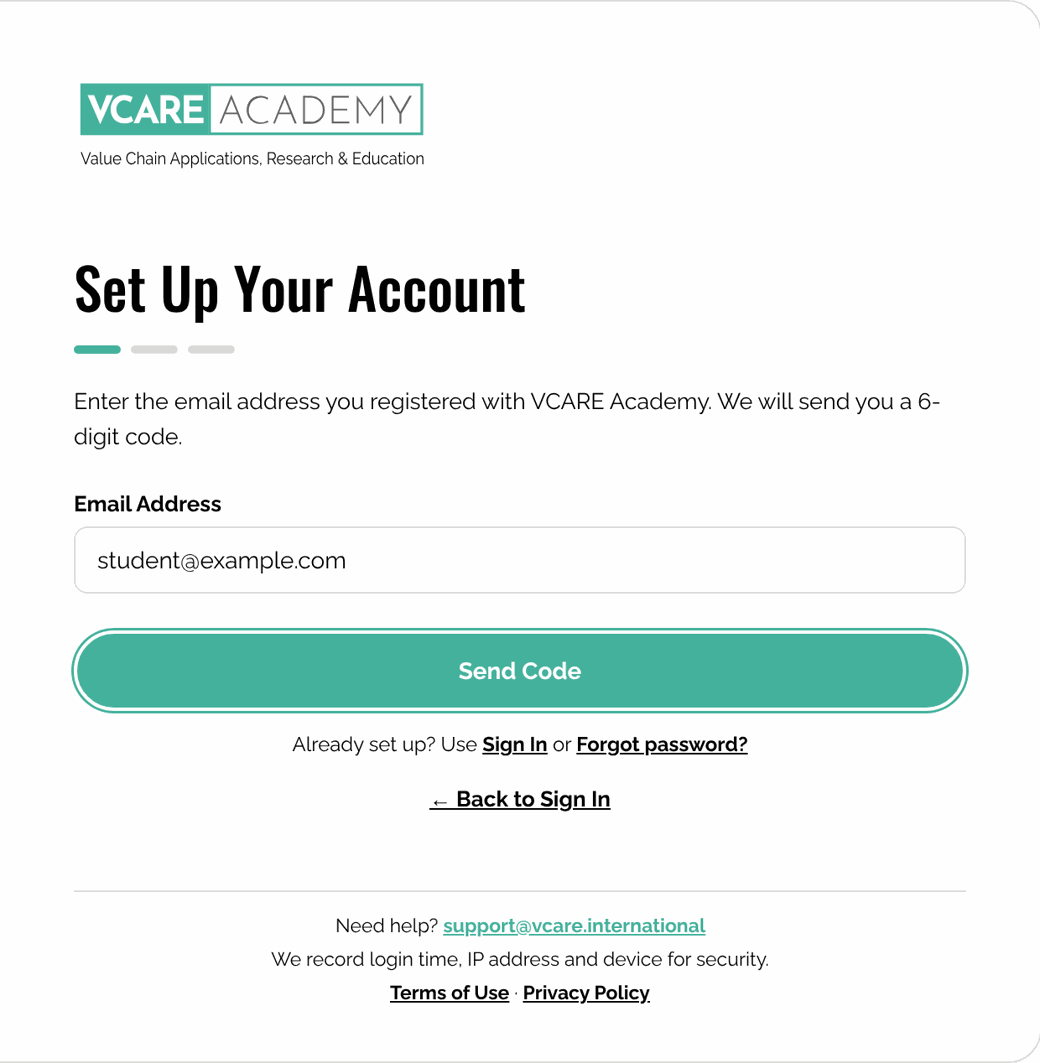
Enter your registered email
Type the email address you registered with VCARE Academy, then click Send Code.
Tip Use exactly the same email as in your registration confirmation.
1Type your registered email
2Click Send Code
1Type your registered email
2Click Send Code
03.
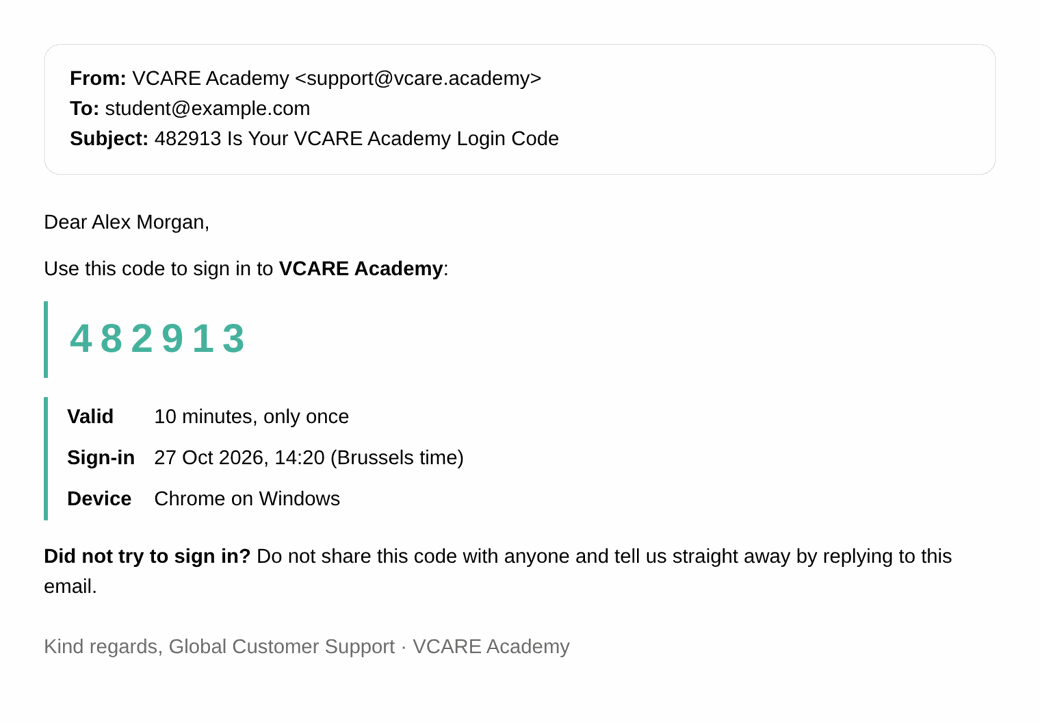
Check your inbox
A 6-digit code from support@vcare.academy arrives within a minute. It works for 10 minutes, only once.
Tip Not there? Look in your spam folder, or click Send a new code.
This is your 6-digit code
1This is your 6-digit code
04.
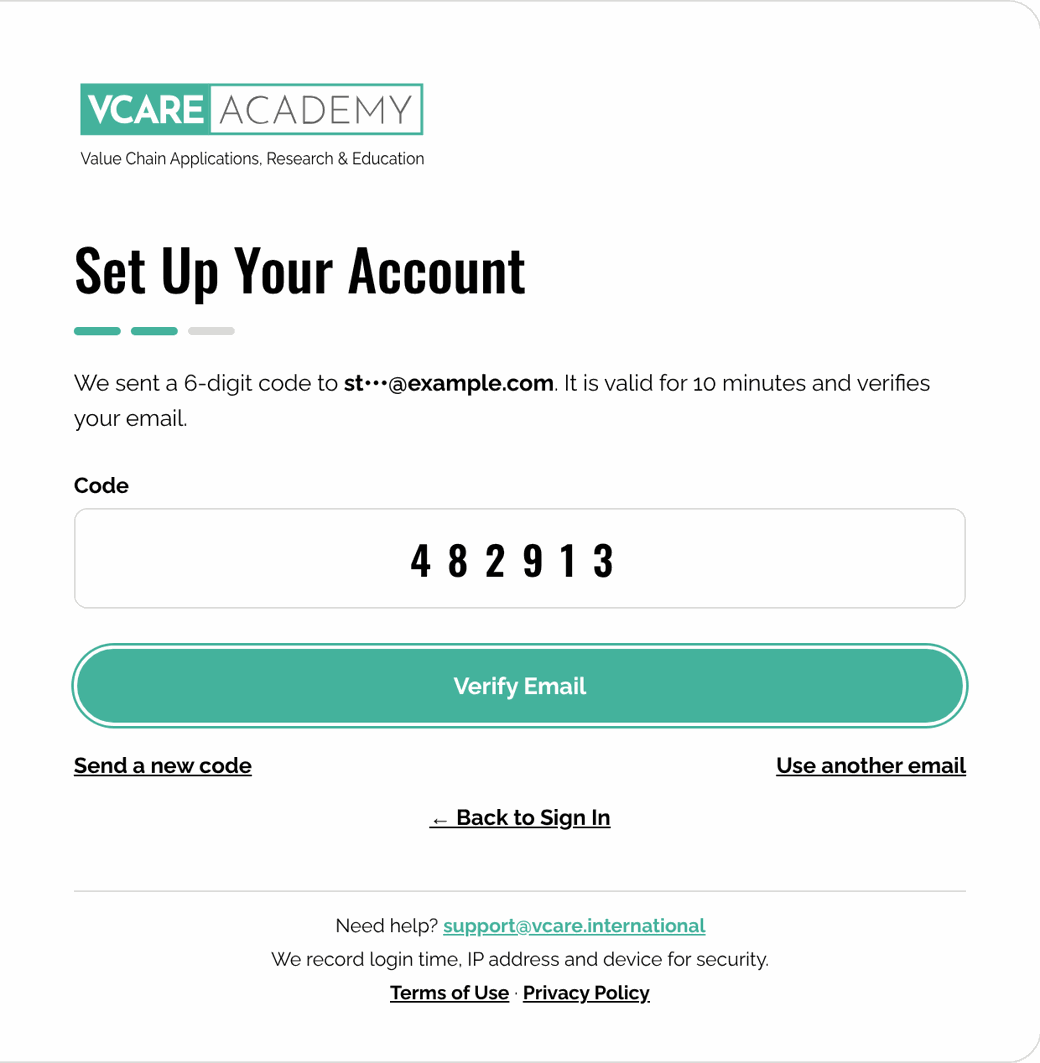
Enter the code
Type the 6 digits and click Verify Email. This confirms the email is yours.
1Type the 6 digits from the email
2Click Verify Email
1Type the 6 digits from the email
2Click Verify Email
05.
Choose your own password
10 to 25 characters, with a capital letter, a small letter, a number and a special character. Type it twice, tick the Terms of Use, then click Save and Open Your Learning Center.
1Choose your password and type it twice
2Tick the Terms, then click the green button
1Choose your password and type it twice
2Tick the Terms, then click the green button
06.
You are in
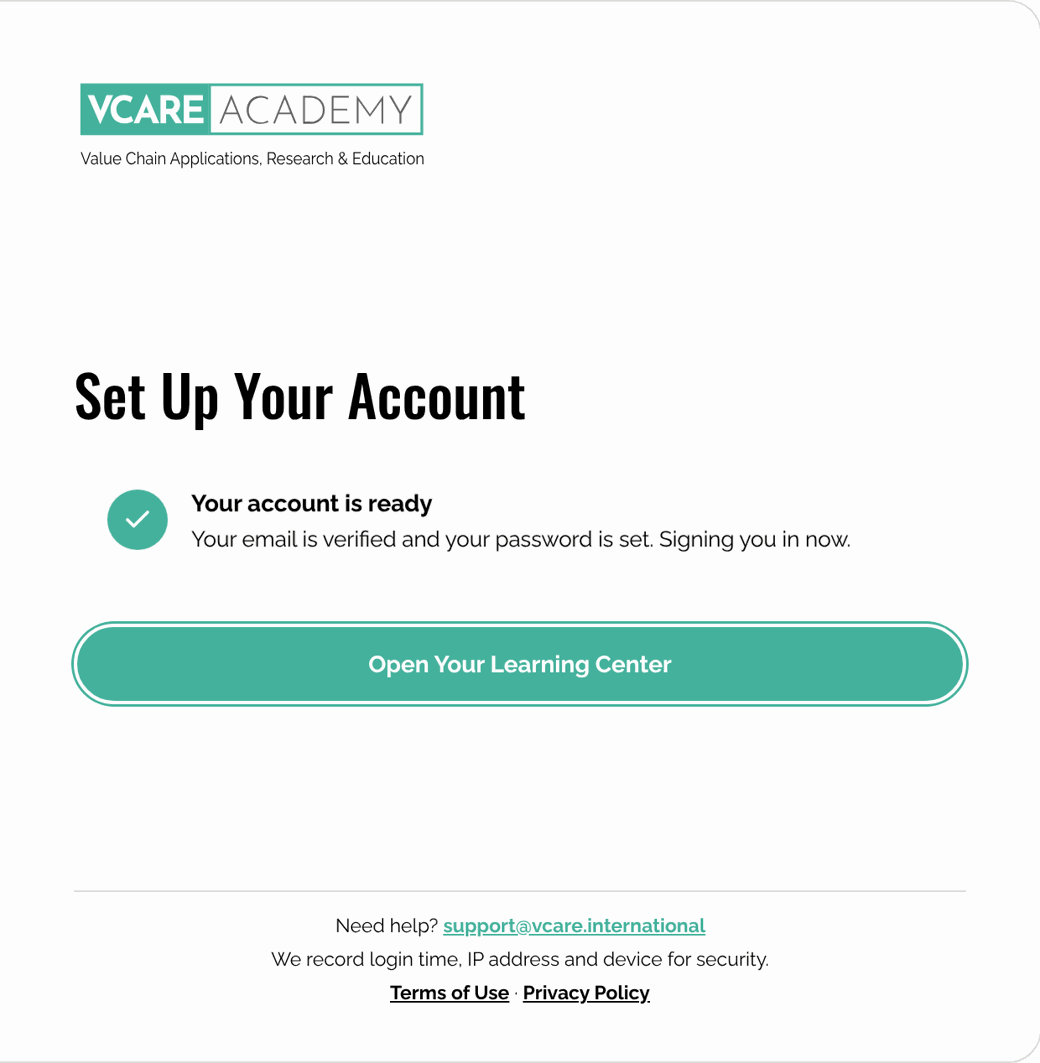
Your account is ready. Your Learning Center opens with all your programs.
Done! Click to open your Learning Center
1Done! Click to open your Learning Center
Next Time
Every time you come back
01.
Email, password and code
Open vcare.academy/login/.
Enter your email and your password, tick the Terms of Use, click Sign In.
Enter the 6-digit code we email you.
Tip Tick Remember me (30 days) on your own computer.
1Type your email and password
2Tick the Terms, then click Sign In
1Type your email and password
2Tick the Terms, then click Sign In
Having Trouble?
Quick answers
01.
Forgot your password?
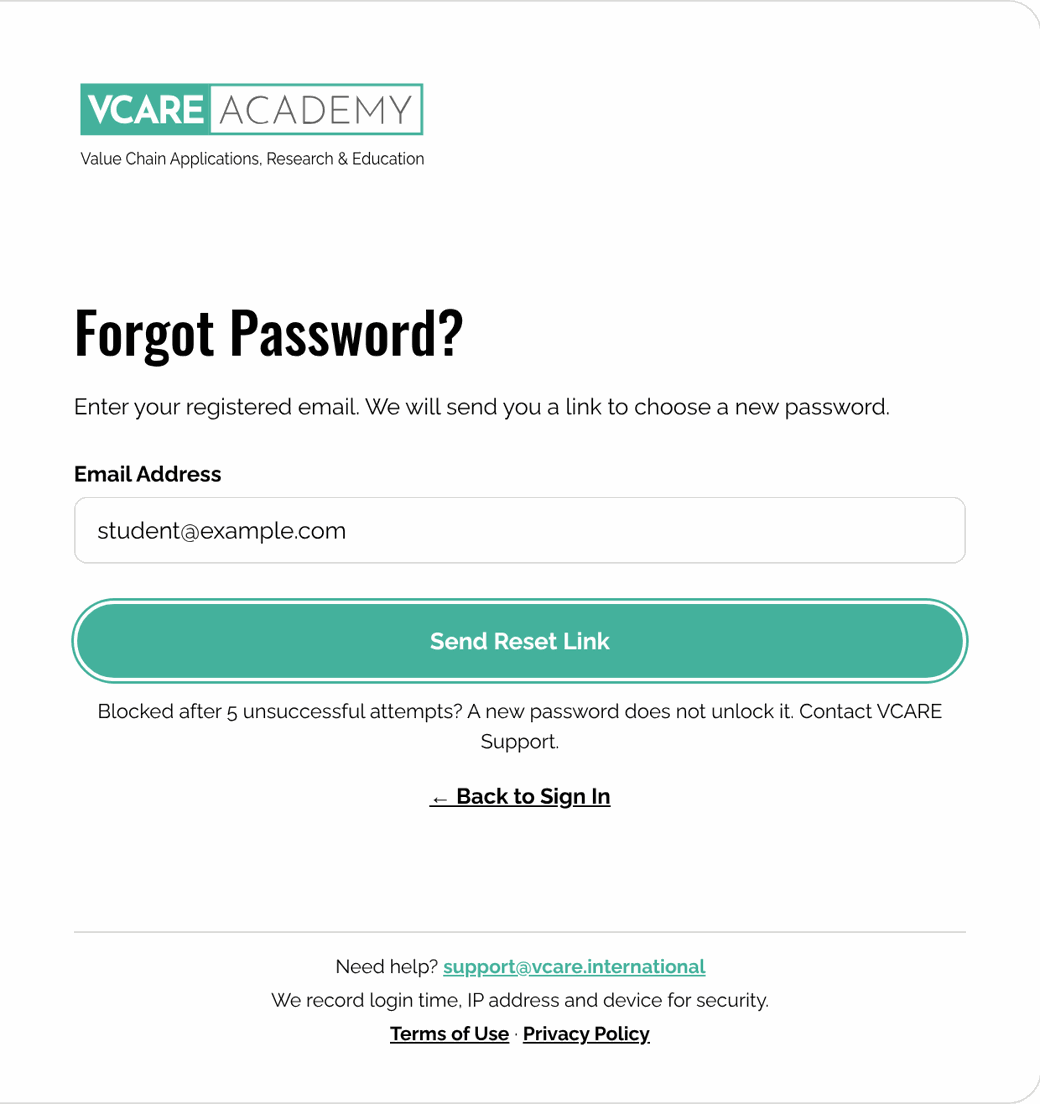
Click Forgot password? on the login, enter your registered email and click Send Reset Link. Open the link in your email (it works for 1 hour) and choose a new password.
1Type your registered email
2Click Send Reset Link
1Type your registered email
2Click Send Reset Link
02.
Wrong password
The login tells you how many attempts are left. After 5 unsuccessful attempts your account is blocked, and a new password does not unlock it. Contact VCARE Support.
Shows how many attempts are left
1Shows how many attempts are left
No code?
Wait one minute, look in spam, then click Send a new code. A code works for 10 minutes.
One website and one app at a time
You can be signed in on the website and in the VCARE Connect app together. Signing in on another browser or another app signs you out on the first one.
Personal account
Never share your login. Every sign-in is recorded, and a shared account is closed.
Still stuck?
Write to us with your registered email. We reply as soon as possible.