← VCARE Connect

How to Install VCARE Connect
Translate this page
Install the app on your phone or tablet in a few taps. Choose your device: each picture shows the screen you will see, with a yellow box where to tap.
For VCARE Academy customers only
Your device:
Android
In Chrome. The yellow box shows where to tap.
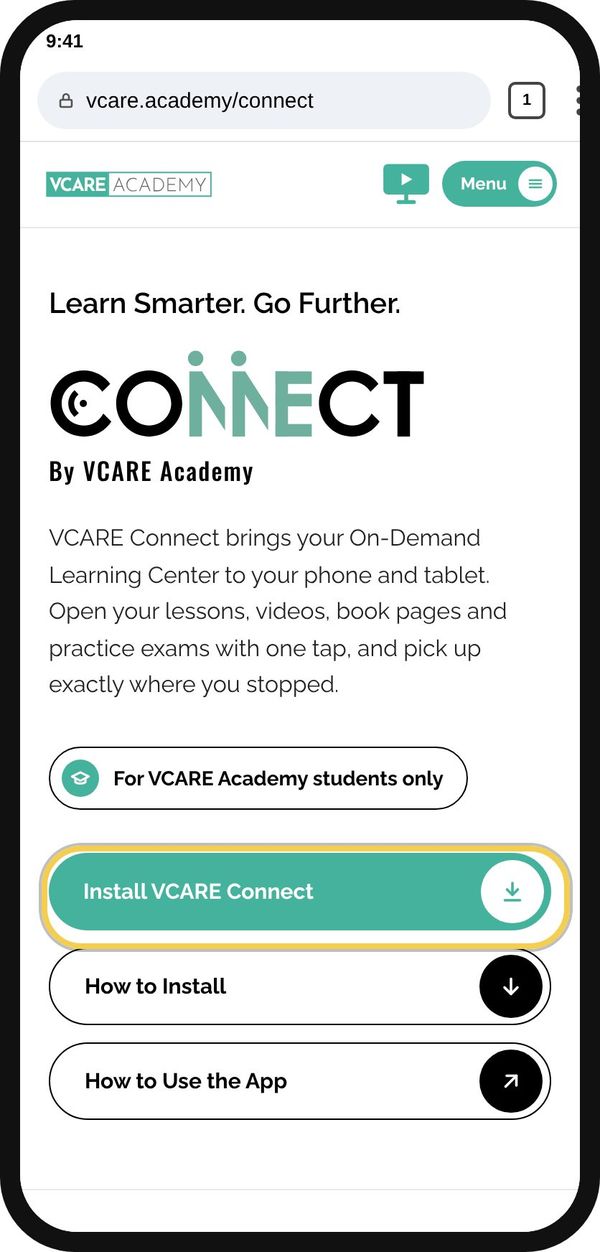
Step 1
Tap Install VCARE Connect
On vcare.academy/connect
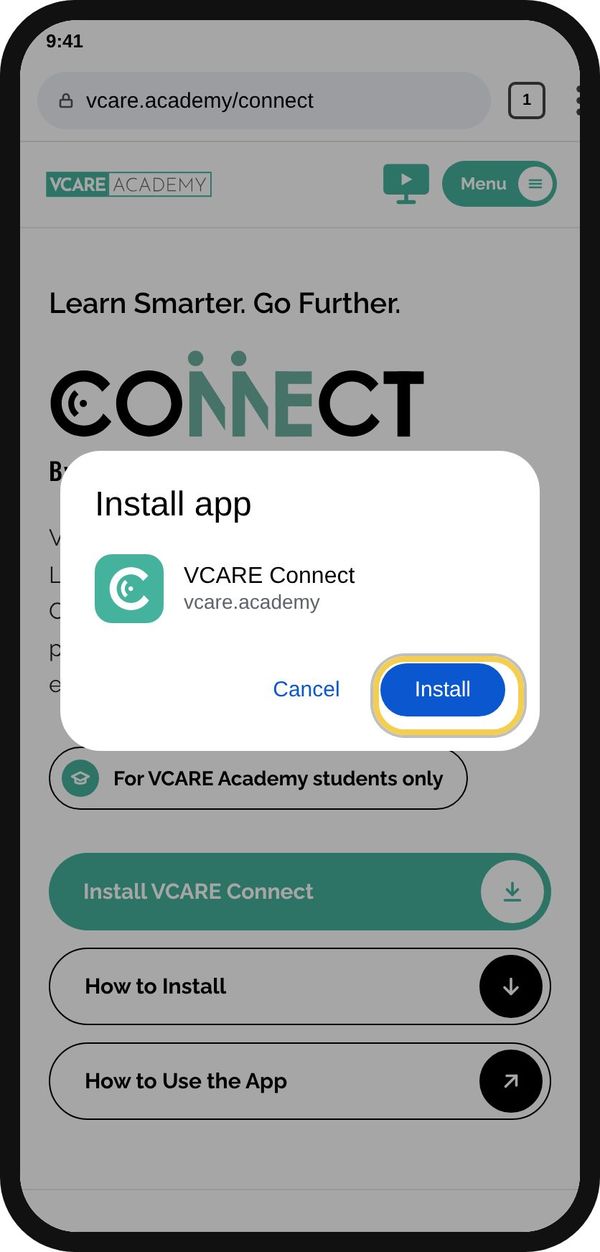
Step 2
Tap Install
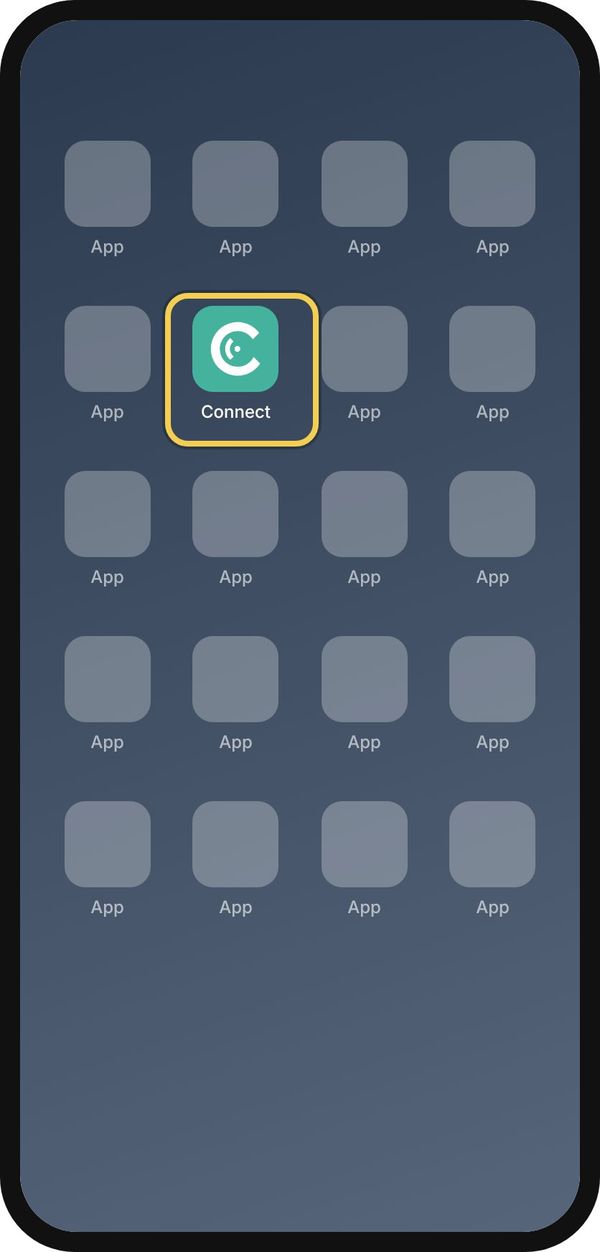
Step 3
Open Connect from your Home Screen
Sign in once with your VCARE account
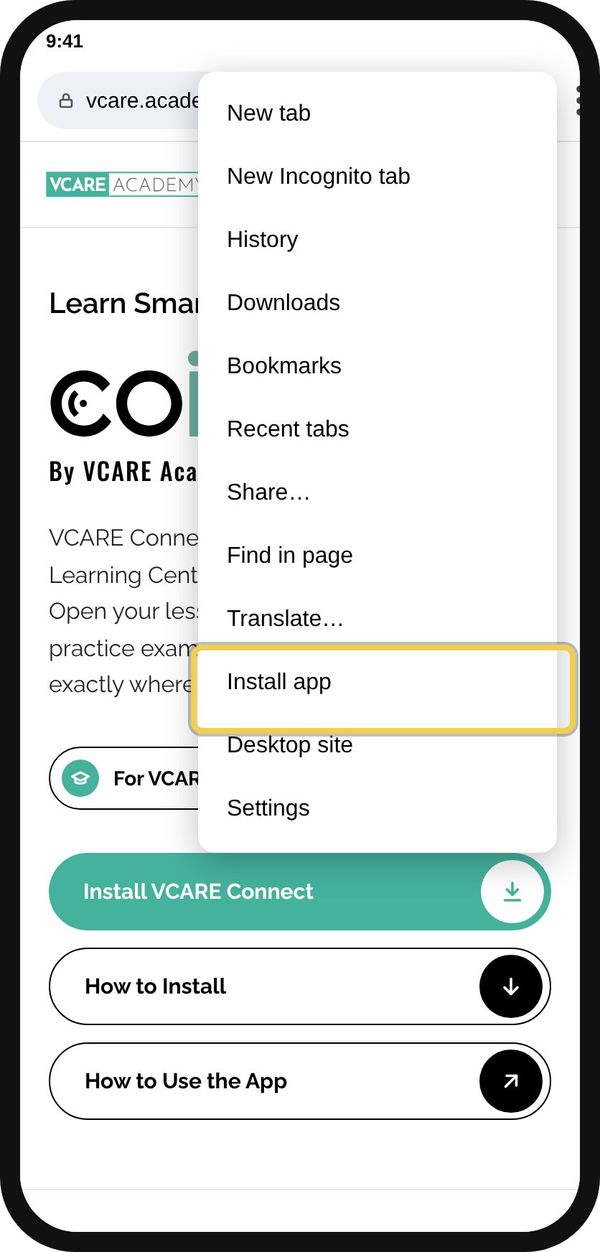
If you see no Install button
No Install button? Tap ⋮, then Install app
Some phones say Add to Home screen
iPhone
In Safari. The yellow box shows where to tap.
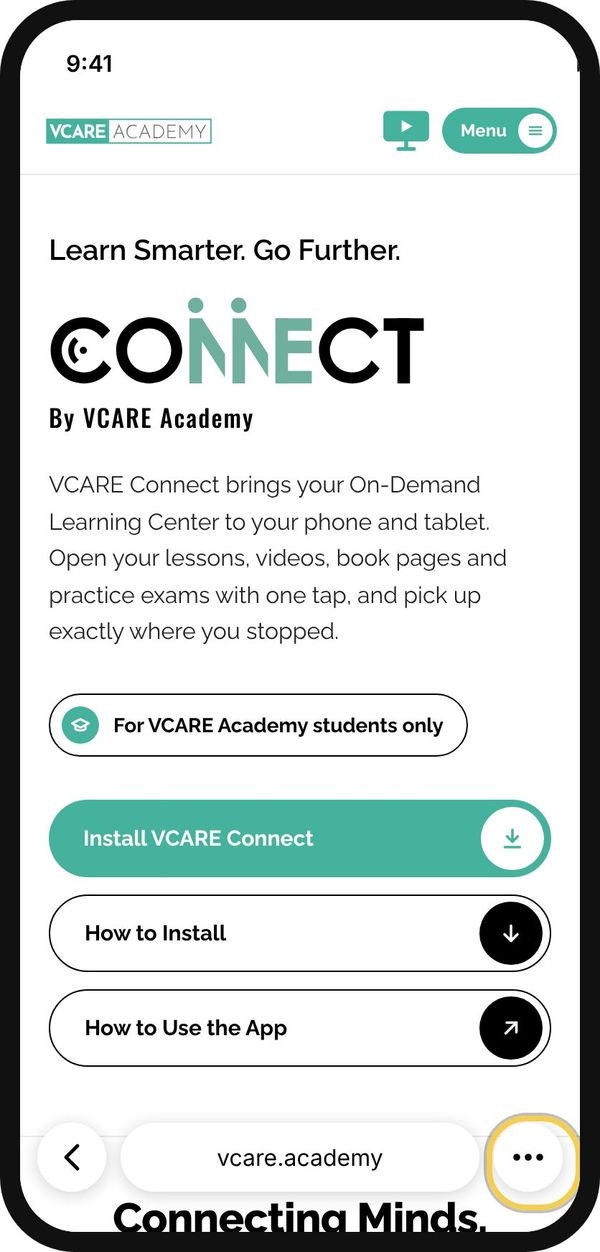
Step 1
Tap ••• at the bottom right
Only see vcare.academy? Tap it first
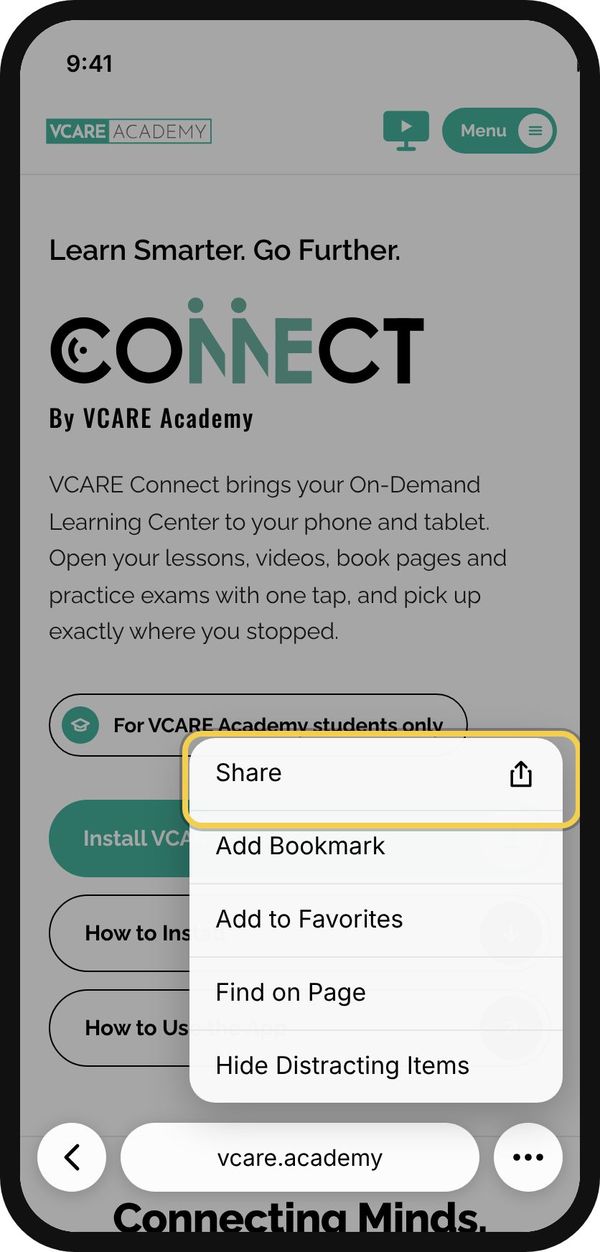
Step 2
Tap Share
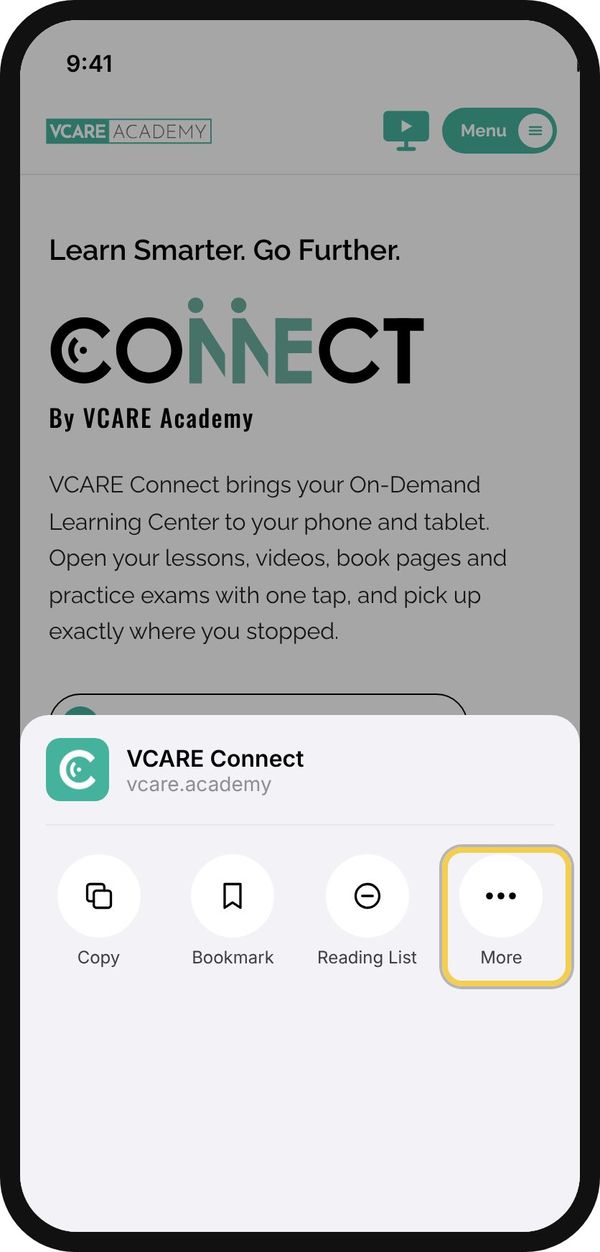
Step 3
Tap More
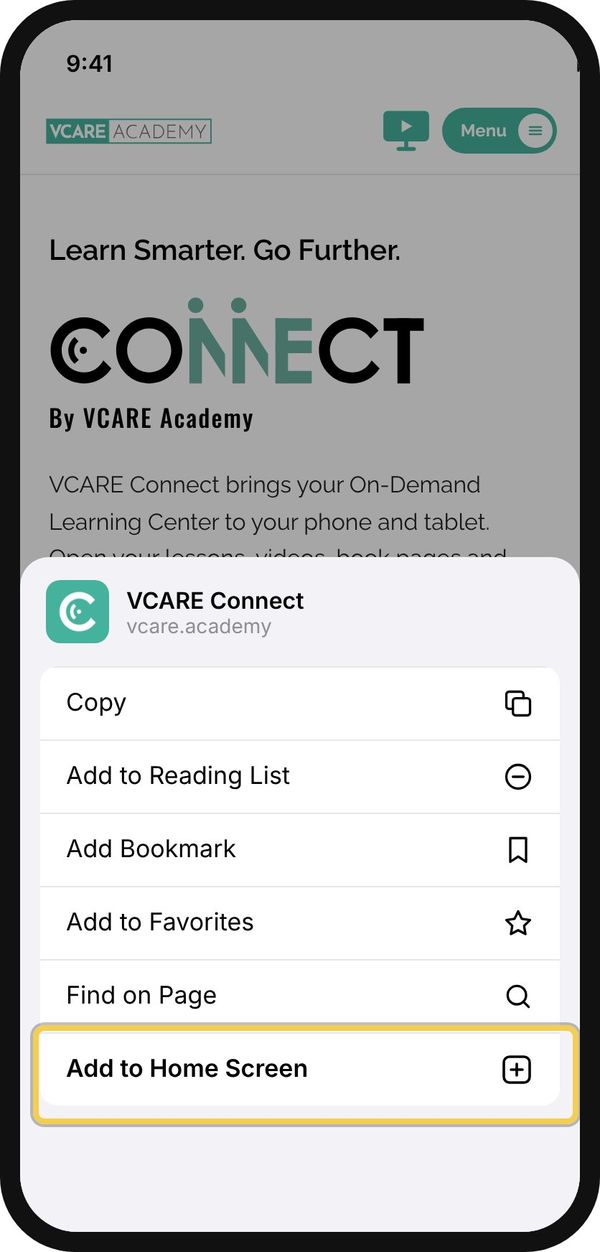
Step 4
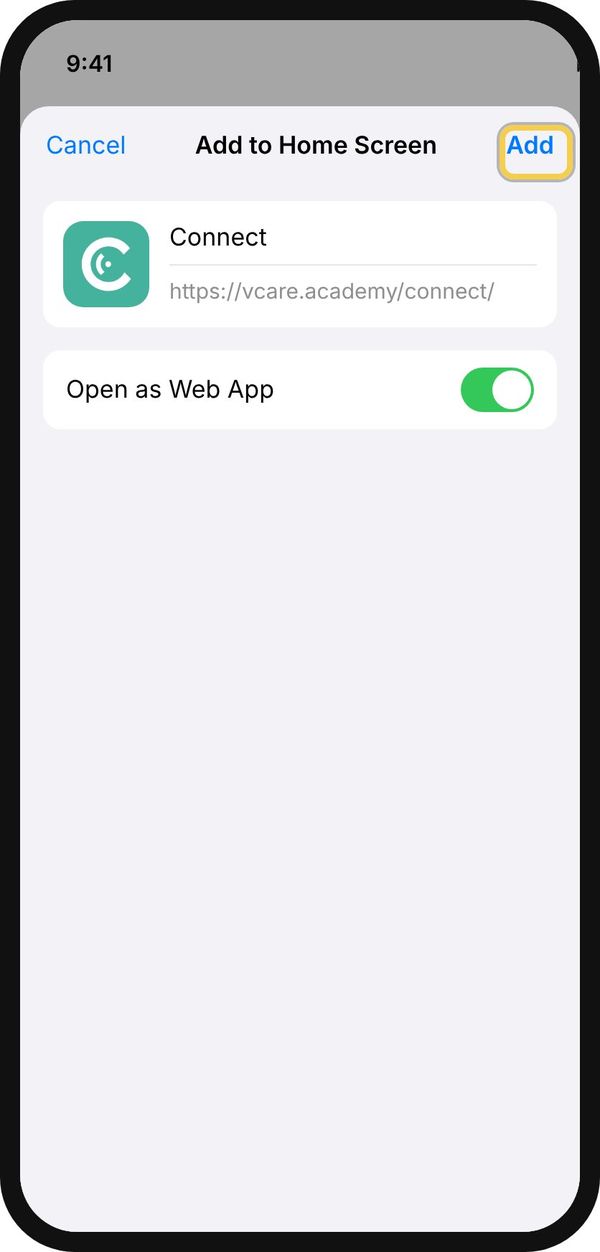
Tap Add to Home Screen
Step 5
Tap Add
Keep Open as Web App on
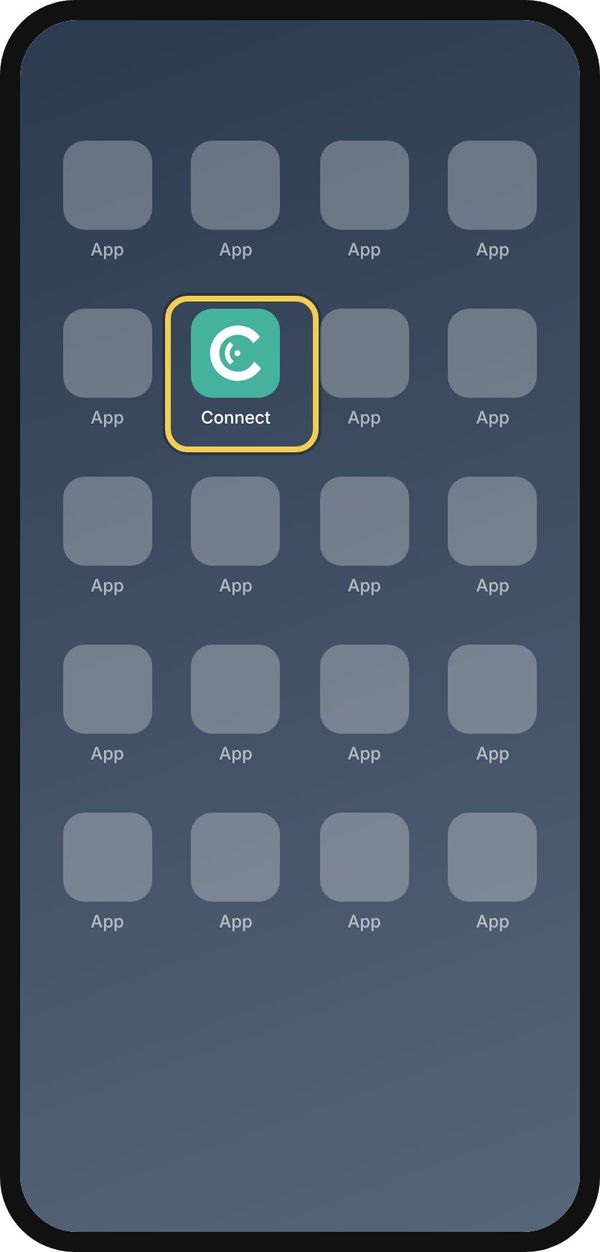
Step 6
Open Connect from your Home Screen
Sign in once with your VCARE account
iPad
In Safari. The yellow box shows where to tap.
Step 1
Tap Share at the top right
Next to the address bar
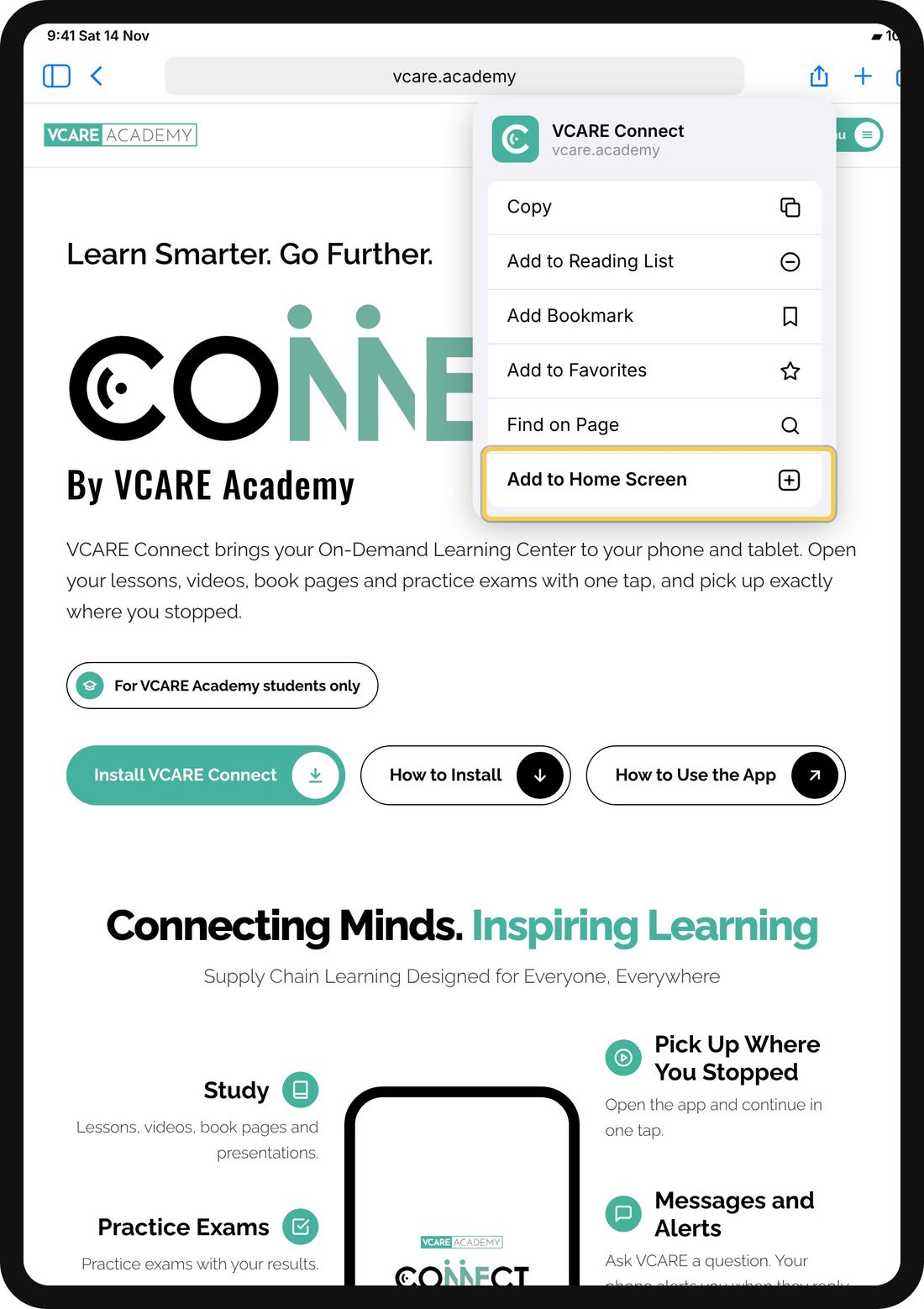
Step 2
Tap Add to Home Screen
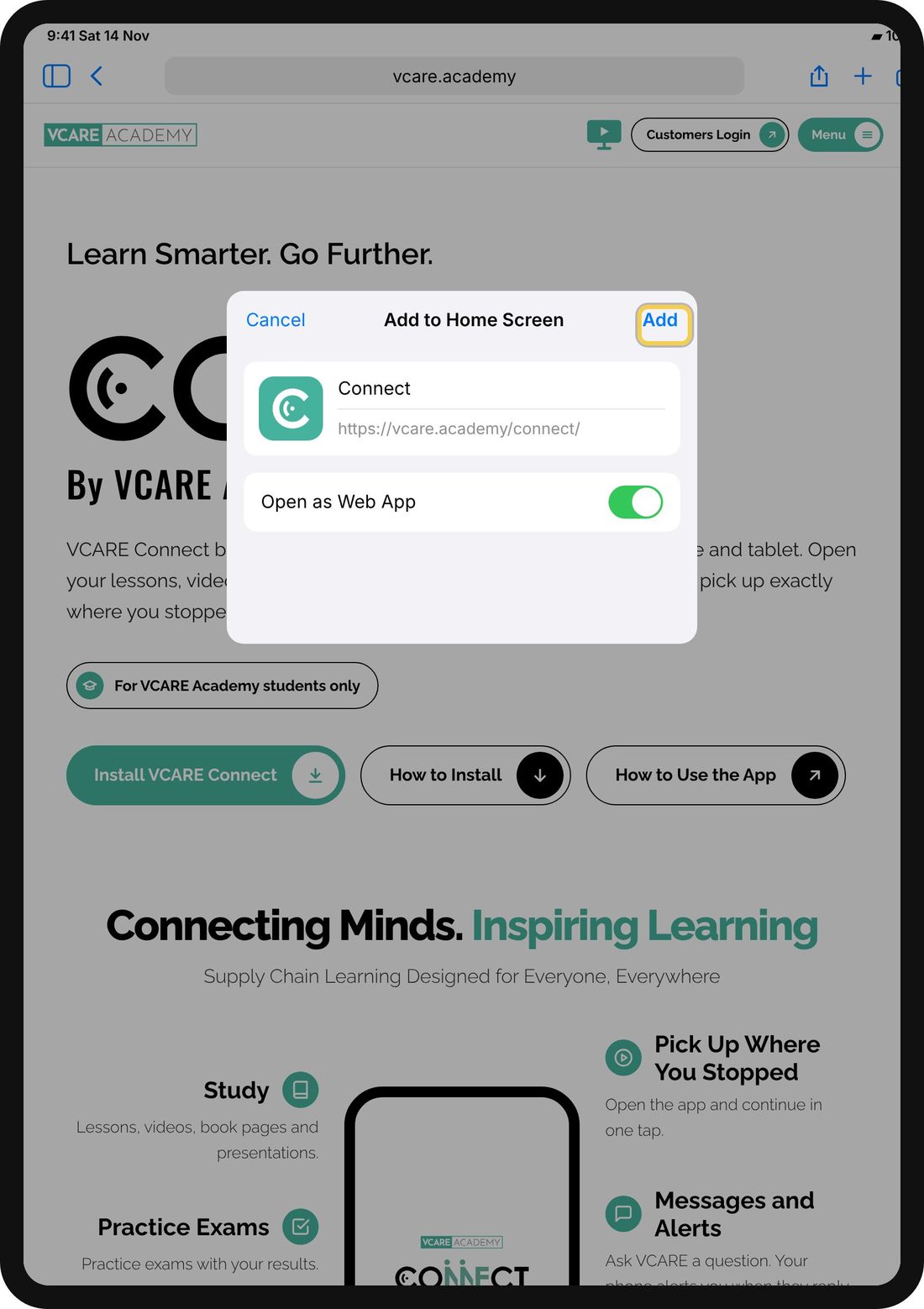
Step 3
Tap Add
Step 4
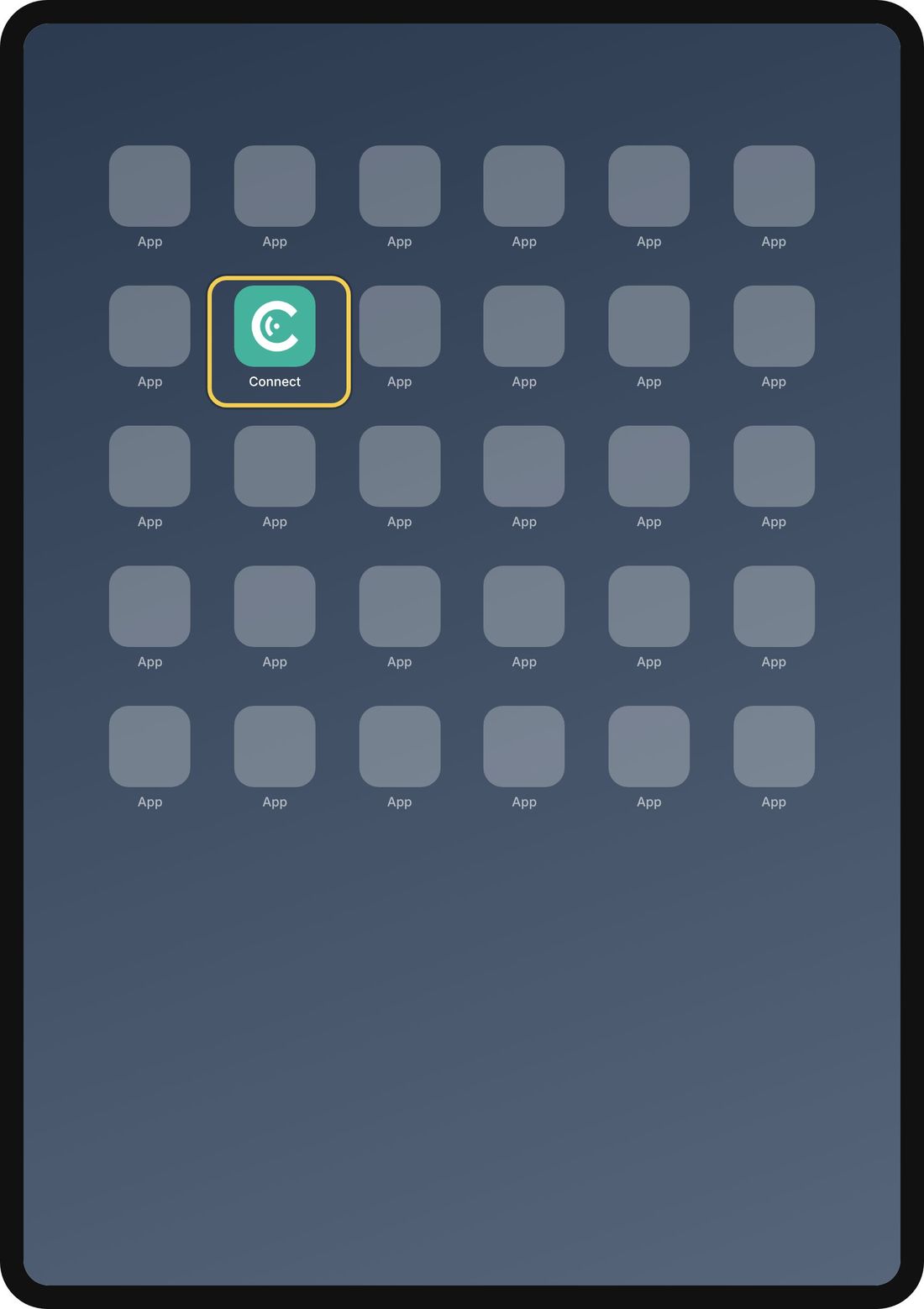
Open Connect from your Home Screen
Sign in once with your VCARE account
Why iPhone and iPad Are Different
No Install button
Apple doesn't let websites show one. You add the app yourself from Share.
Use Safari
Links opened inside Instagram, WhatsApp or Facebook can't add apps. Open the page in Safari first.
Message Alerts
They work after you add the app to your Home Screen, on iOS 16.4 or newer.
No App Store
You don't need the App Store. The app updates itself.
Need help?
Cannot log in? Read How to Log In. Questions about the app or your program? Write to us.